
Keep Your Portal Data Fresh: A Hands-On Guide to the PortalJS Cloud API

João Demenech
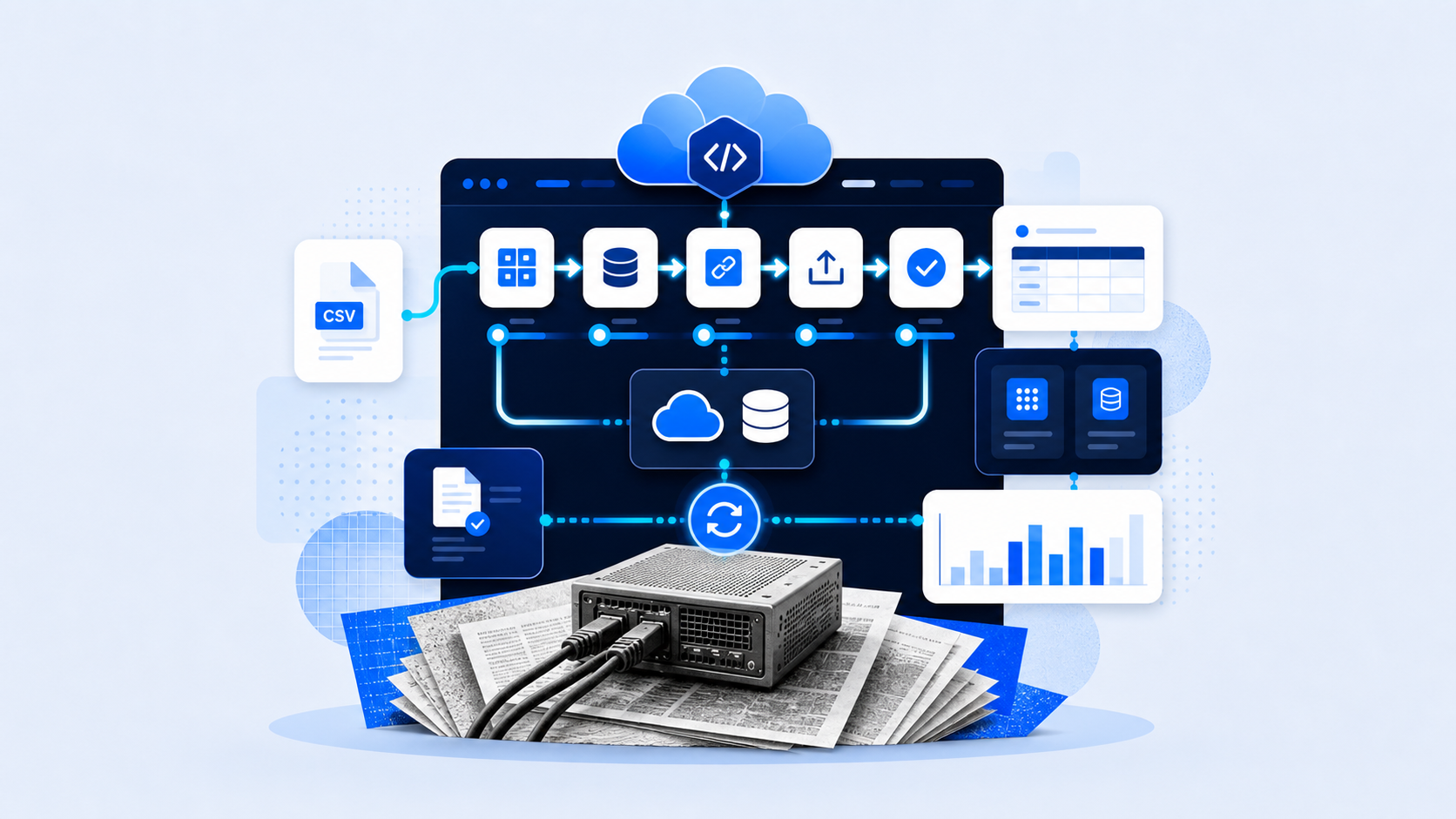
Keeping data portals up to date is harder than it looks. Files change, metadata drifts, and manual uploads don’t scale once updates become frequent or automated.
PortalJS Cloud solves this by exposing a powerful API that lets you manage datasets, resources, and data files programmatically. In this guide, we’ll walk through how to use the PortalJS Cloud API to automatically create datasets, upload data, and keep both data and metadata in sync—using real Python code.
By the end, you’ll have all the pieces needed to build a repeatable, automated data publishing pipeline.
The Problem with Manual Data Updates
Many portals start with a simple workflow:
- Upload a CSV through the UI
- Update the description
- Repeat next week
Over time, this approach breaks down:
- Files are updated, but metadata isn’t
- Uploads become repetitive and error-prone
- Data refreshes depend on someone remembering to do them
What we want instead is:
- A fully automated flow
- Consistent dataset and resource metadata
- The ability to update data on a schedule
That’s exactly what the PortalJS Cloud API enables.
Finding Your PortalJS Cloud API
Every PortalJS Cloud portal comes with its own API.
You can access your portal’s API documentation using the following pattern:
https://api.cloud.portaljs.com/{your-portal}/api/3/docs
For example, for the Datopian portal:
https://api.cloud.portaljs.com/@datopian/api/3/docs
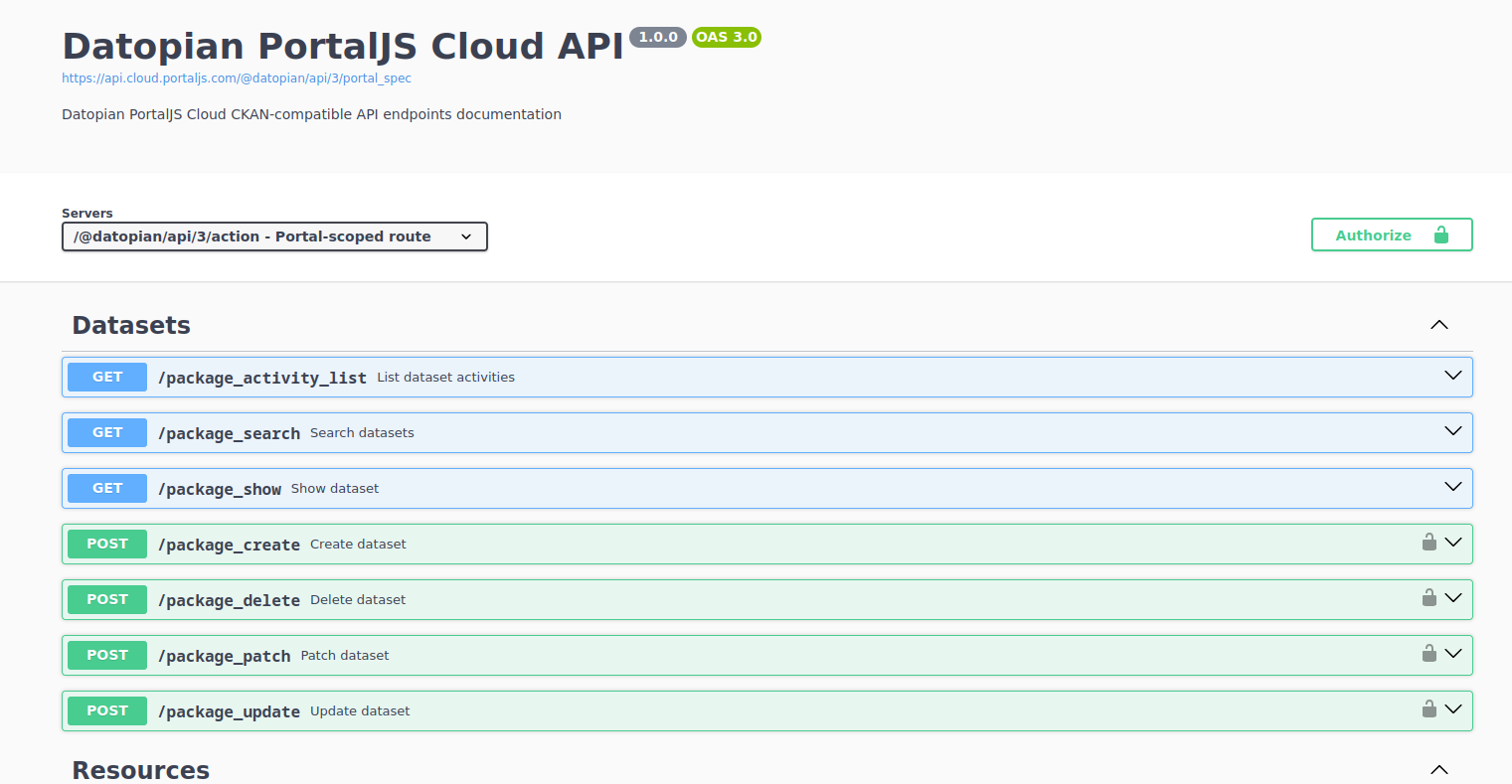
This interactive documentation lets you:
- Explore all available endpoints
- See required parameters and response schemas
- Test requests directly from the browser
Tip: Bookmark this page—you’ll use it constantly when building and debugging integrations.
Authentication and API Keys
Public access (no API key)
Without an API key, anyone can:
- Read public datasets
- Access public resources and data files
For example, a simple public read request:
import requests

response = requests.get(
    "https://api.cloud.portaljs.com/@datopian/api/3/action/package_search"
)

result = response.json()
print(result)
Authenticated access (API key required)
To create or update data, you’ll need an API key. Authenticated actions include:
- Creating datasets
- Creating resources
- Uploading or replacing data files
- Updating dataset and resource metadata
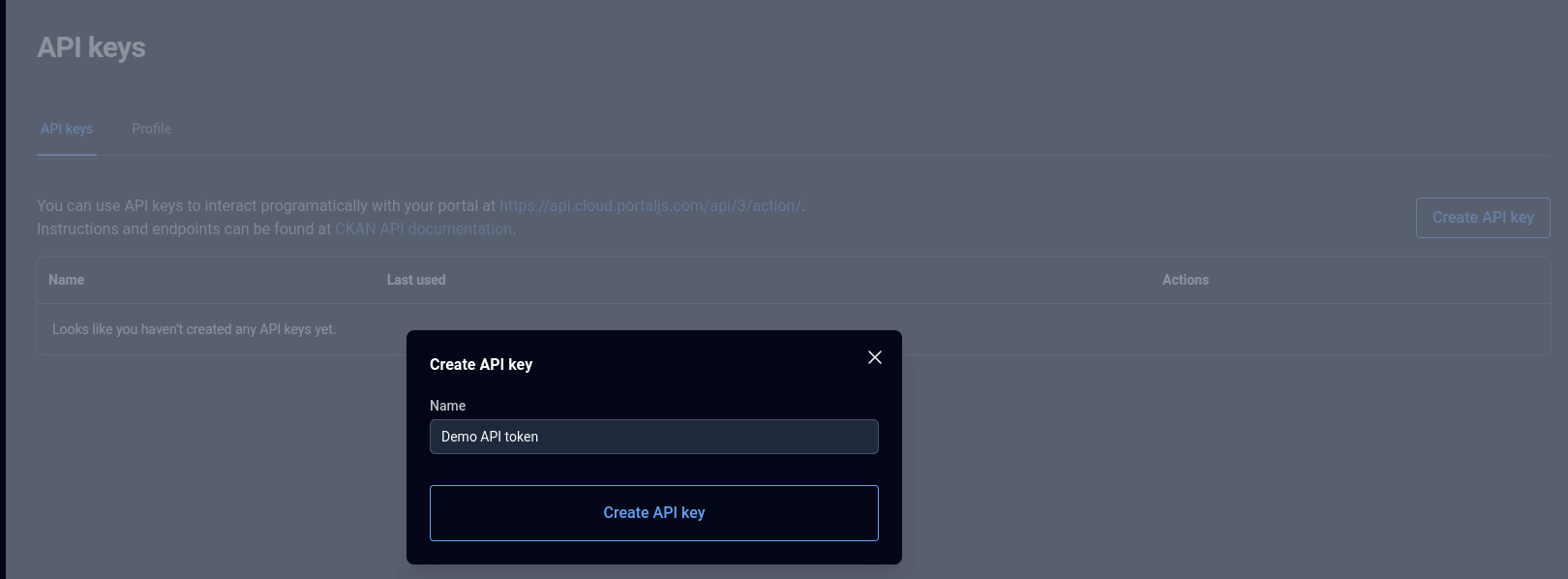
Generating an API key
To generate an API key:
- Log in to the PortalJS Cloud dashboard
- Navigate to your user profile
- Create a new API key
Treat API keys like passwords and store them securely.
Using the API key in requests
Include the API key in the Authorization header.
Common Python setup
We’ll use Python 3.10+ and the requests package. Set your portal slug and API key once and reuse them everywhere.
import requests

PORTAL = "datopian"
API_KEY = "your-api-key"
API_BASE = f"https://api.cloud.portaljs.com/@{PORTAL}/api/3/action"

headers = {
    "Content-Type": "application/json",
    "Authorization": API_KEY,
}
Creating a Dataset via the API
In PortalJS, a dataset is the top-level container for related data and resources.
To create one programmatically, use the package_create endpoint.
response = requests.post(
    f"{API_BASE}/package_create",
    headers=headers,
    json={
        "name": "automated-dataset",
        "title": "Automated Dataset",
        "notes": "This dataset is created and updated via the PortalJS Cloud API",
        "owner_org": PORTAL,
    },
)

result = response.json()
print(result)

dataset_id = result["result"]["id"]
The
owner_orgfield should be set to the organization that owns the dataset.
You can find the organization identifier in the PortalJS Cloud dashboard.
Creating a Resource for the Dataset
A resource represents a specific data file (CSV, JSON, etc.) attached to a dataset.
Create a resource using resource_create:
response = requests.post(
    f"{API_BASE}/resource_create",
    headers=headers,
    json={
        "package_id": "automated-dataset",
        "name": "latest-data",
        "description": "Latest version of the dataset",
        "format": "CSV",
    },
)

result = response.json()
print(result)

resource_id = result["result"]["id"]
Resources are typically created once and updated repeatedly.
Uploading Data Using Pre-Signed URLs
PortalJS Cloud uses pre-signed URLs for uploads. This allows large files to be uploaded directly to storage without passing through the API server.
The upload flow is:
- Request an upload URL
- Upload the file using
PUT - Finalize the upload so the resource metadata is updated
Step 1: Request an upload URL
upload_response = requests.post(
    f"{API_BASE}/resource_upload",
    headers=headers,
    json={
        "id": resource_id,
        "filename": "data.csv",
    },
)

upload_result = upload_response.json()
upload_url = upload_result["result"]["presigned_url"]
print(upload_url)
Step 2: Upload the file
Create a minimal CSV file locally first, for example data.csv:
id,name
1,Example row
Then upload the file:
with open("./data.csv", "rb") as file_handle:
    requests.put(upload_url, data=file_handle)
Step 3: Finalize the upload
requests.post(
    f"{API_BASE}/resource_upload_finalize",
    headers=headers,
    json={
        "id": resource_id,
    },
)
At this point, the resource is updated and consumers will see the new data.
Updating Resource Data Automatically
This same upload flow can be reused every time your data changes:
- Daily refreshes
- Weekly exports
- Data generated from upstream systems
You do not need to create a new resource each time. Updating the existing resource ensures:
- Stable URLs
- Consistent metadata
- A clean dataset structure
Putting It All Together: End-to-End Automation
A typical automation flow looks like this:
One-time
- Create dataset
- Create resource
On every run
- Generate or fetch new data
- Request upload URL
- Upload file
- Finalize the upload
Common Dataset and Resource Operations
Here are a few additional calls you’ll use often once your pipeline is in place.
Search datasets
search_response = requests.get(
    f"{API_BASE}/package_search",
    params={"q": "climate", "rows": 5},
)

search_result = search_response.json()
print(search_result)
Patch a dataset
dataset_patch_response = requests.post(
    f"{API_BASE}/package_patch",
    headers=headers,
    json={
        "id": dataset_id,
        "notes": "Updated description from automation.",
    },
)

dataset_patch_result = dataset_patch_response.json()
print(dataset_patch_result)
Delete a dataset
dataset_delete_response = requests.post(
    f"{API_BASE}/package_delete",
    headers=headers,
    json={"id": dataset_id},
)

dataset_delete_result = dataset_delete_response.json()
print(dataset_delete_result)
Patch a resource
resource_patch_response = requests.post(
    f"{API_BASE}/resource_patch",
    headers=headers,
    json={
        "id": resource_id,
        "description": "Updated resource description.",
    },
)

resource_patch_result = resource_patch_response.json()
print(resource_patch_result)
Delete a resource
resource_delete_response = requests.post(
    f"{API_BASE}/resource_delete",
    headers=headers,
    json={"id": resource_id},
)

resource_delete_result = resource_delete_response.json()
print(resource_delete_result)
Full End-to-End Script
If you want a single copy-paste file with all the steps (create dataset, create resource, upload, finalize), use this:
import requests

PORTAL = "datopian"
API_KEY = "your-api-key"
API_BASE = f"https://api.cloud.portaljs.com/@{PORTAL}/api/3/action"

headers = {
    "Content-Type": "application/json",
    "Authorization": API_KEY,
}

dataset_response = requests.post(
    f"{API_BASE}/package_create",
    headers=headers,
    json={
        "name": "automated-dataset",
        "title": "Automated Dataset",
        "notes": "This dataset is created and updated via the PortalJS Cloud API",
        "owner_org": PORTAL,
    },
)

dataset_result = dataset_response.json()
dataset_id = dataset_result["result"]["id"]

resource_response = requests.post(
    f"{API_BASE}/resource_create",
    headers=headers,
    json={
        "package_id": dataset_id,
        "name": "latest-data",
        "description": "Latest version of the dataset",
        "format": "CSV",
    },
)

resource_result = resource_response.json()
resource_id = resource_result["result"]["id"]

filename = "data.csv"
with open(filename, "w", encoding="utf-8") as file_handle:
    file_handle.write("id,name\n1,Example row\n")

upload_response = requests.post(
    f"{API_BASE}/resource_upload",
    headers=headers,
    json={
        "id": resource_id,
        "filename": filename,
    },
)

upload_result = upload_response.json()
upload_url = upload_result["result"]["presigned_url"]

with open(filename, "rb") as file_handle:
    requests.put(upload_url, data=file_handle)

requests.post(
    f"{API_BASE}/resource_upload_finalize",
    headers=headers,
    json={
        "id": resource_id,
    },
)
Conclusion and Next Steps
Using the PortalJS Cloud API, you can move from manual uploads to a fully automated, reliable data publishing workflow.
You’ve seen how to:
- Discover your portal’s API
- Authenticate with API keys
- Create datasets and resources
- Upload and update data programmatically
- Search, update, and delete datasets and resources
Explore your portal’s API documentation to go further and tailor automation to your data workflows.