
Account
Your account page is split into two tabs: Profile (personal info and plan) and API keys (programmatic access).
Open it by clicking your name or avatar at the bottom of the sidebar.

Profile
The Profile tab shows your name, email, and profile picture.
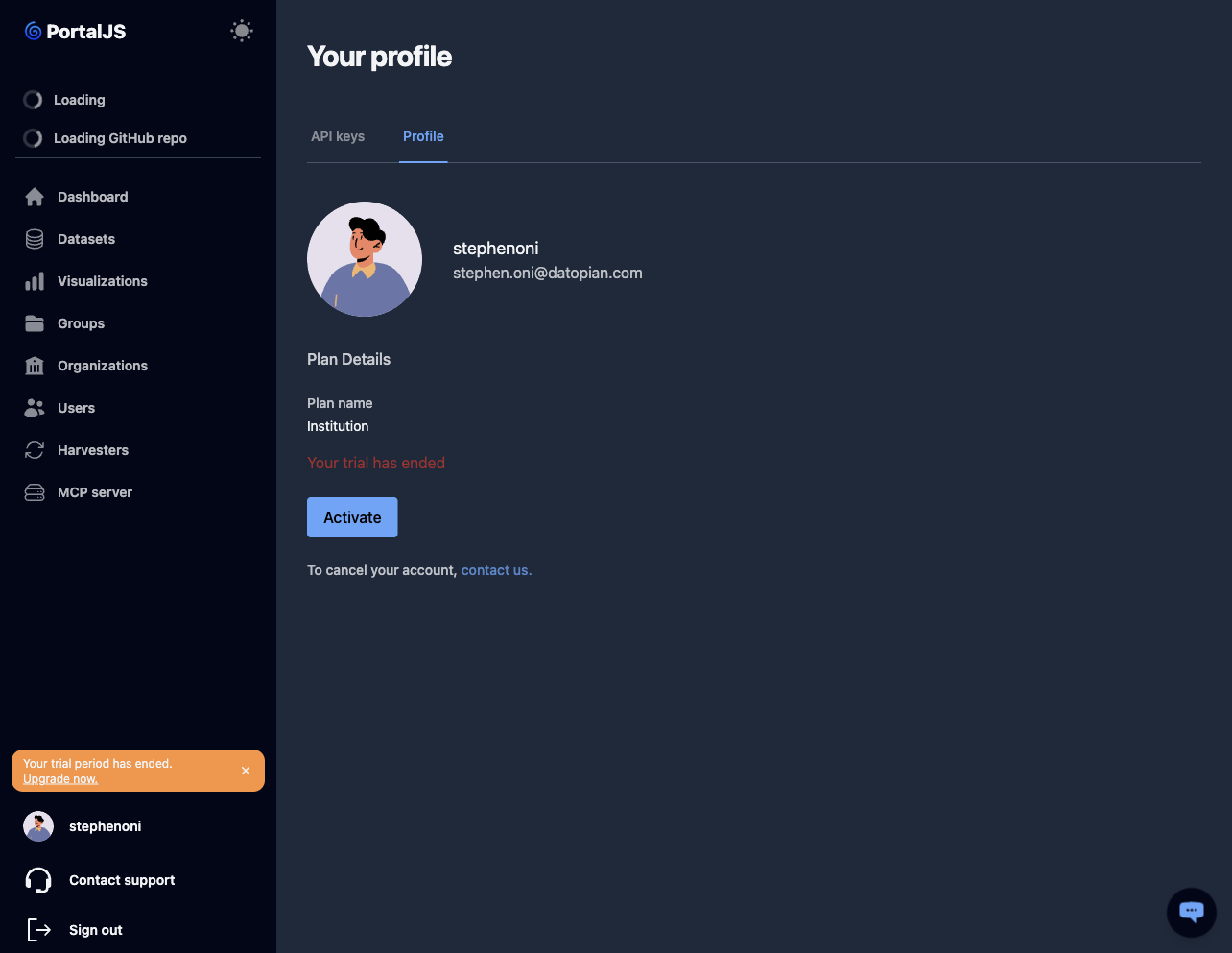
Plan details
If your account is on a trial or paid plan, the Plan Details panel appears at the bottom of the edit form. It shows your current plan, trial status, and renewal date.
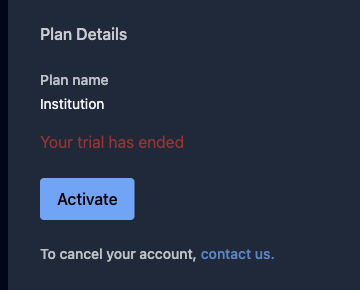
To cancel your account, email portaljs@datopian.com — there is no in-app cancel button.
API keys
API keys let you call your portal's API programmatically.
-
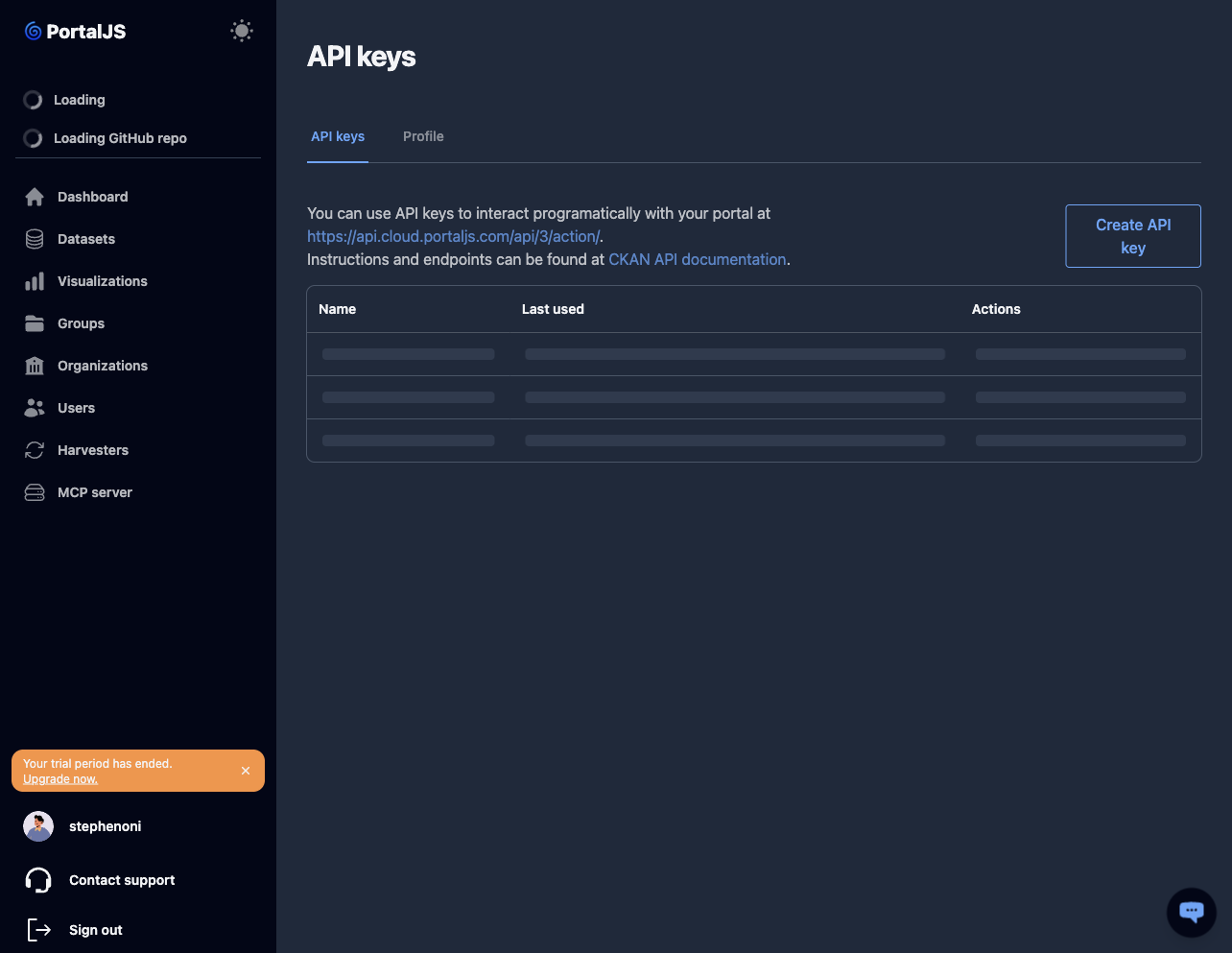
Open the API keys tab from your profile.
-
The table lists your existing keys.
Create an API key
-
Click Create API key.
-
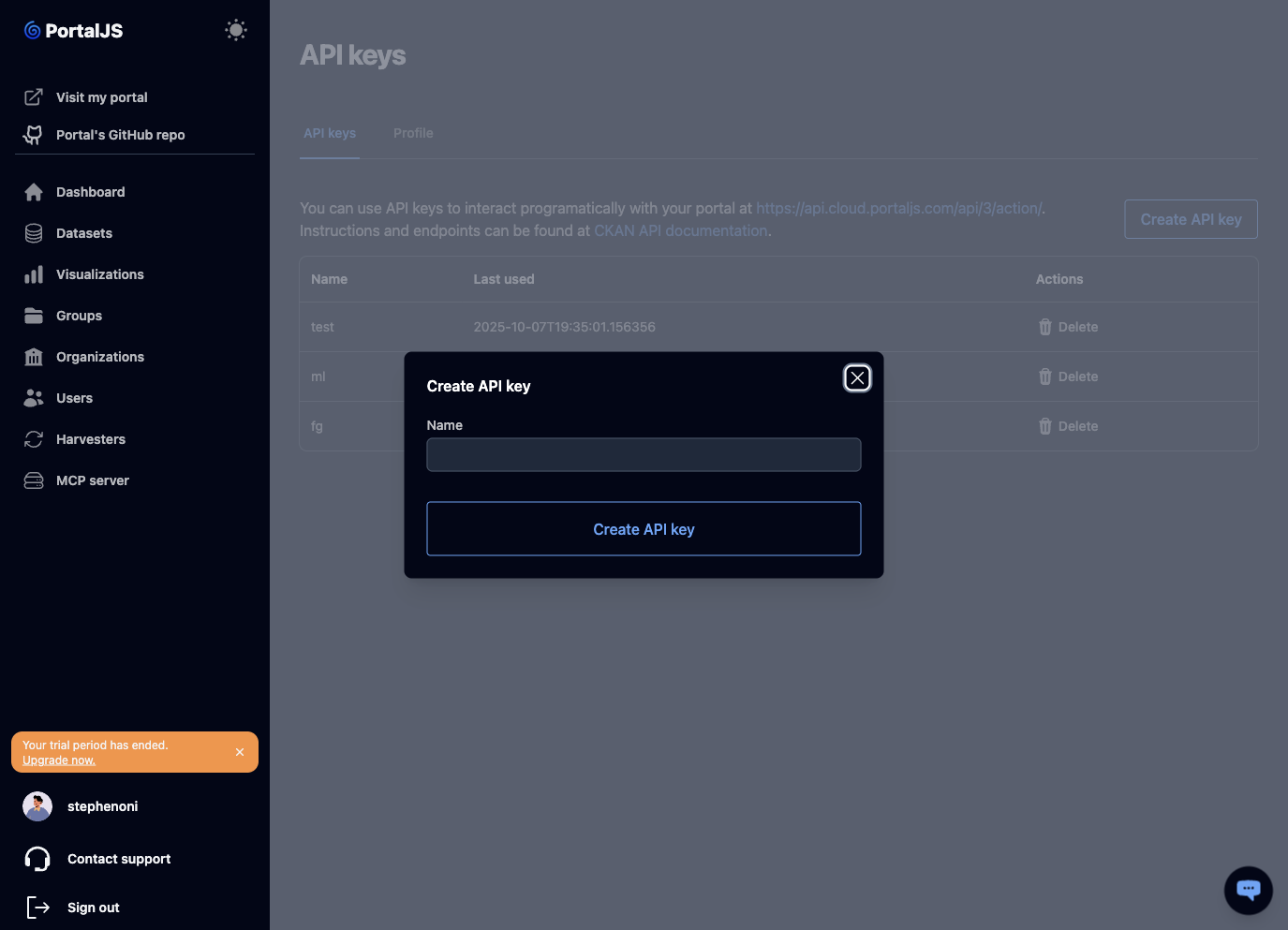
Give the key a name to remind yourself what it is for.
-
Click Create. The new key appears with its token shown once.
Important: copy the token immediately — it cannot be shown again. If you lose it, revoke the key and create a new one.
Use an API key
Send requests to your portal's API, passing your token for authentication. The interactive API reference for your portal is available at:
https://api.cloud.portaljs.com/@<your-org>/api/3/docs
Replace <your-org> with your main organization's name — for example, https://api.cloud.portaljs.com/@datopian/api/3/docs. That page documents the available endpoints and how to authenticate with your API key.
Revoke an API key
From the API keys list, click the delete action next to the key you want to revoke. Any client using that token will immediately stop working.