
MCP Server
PortalJS Cloud exposes your portal's data through a Model Context Protocol (MCP) server. Connect it to any MCP-compatible AI chatbot (Claude, Cursor, etc.) and explore your open data with natural language.
Find your MCP URL
-
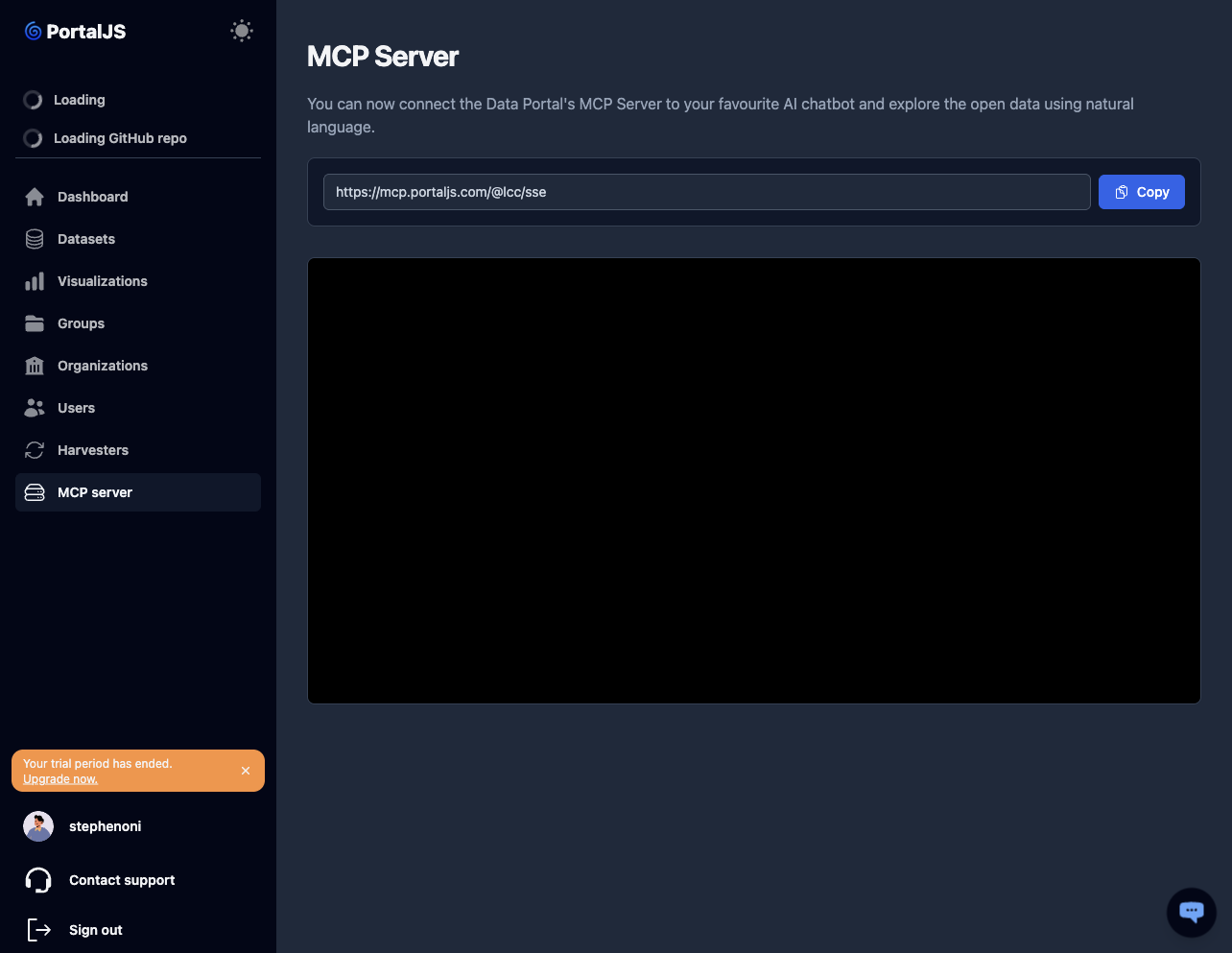
In the sidebar, click MCP server.
-
Your MCP endpoint is shown in the input box. It looks like:
https://mcp.portaljs.com/@<your-org-name>/sse -
Click Copy to put it on your clipboard.

Connect to a chatbot
The exact steps depend on the chatbot. In general:
- Open your chatbot's MCP / integrations / connectors settings.
- Add a new MCP server, pasting the URL you copied.
- Save and (re)start the chat session.
- Ask the chatbot questions about your data — for example, "What datasets do you know about? Show me the top 5 rows of the budget dataset."
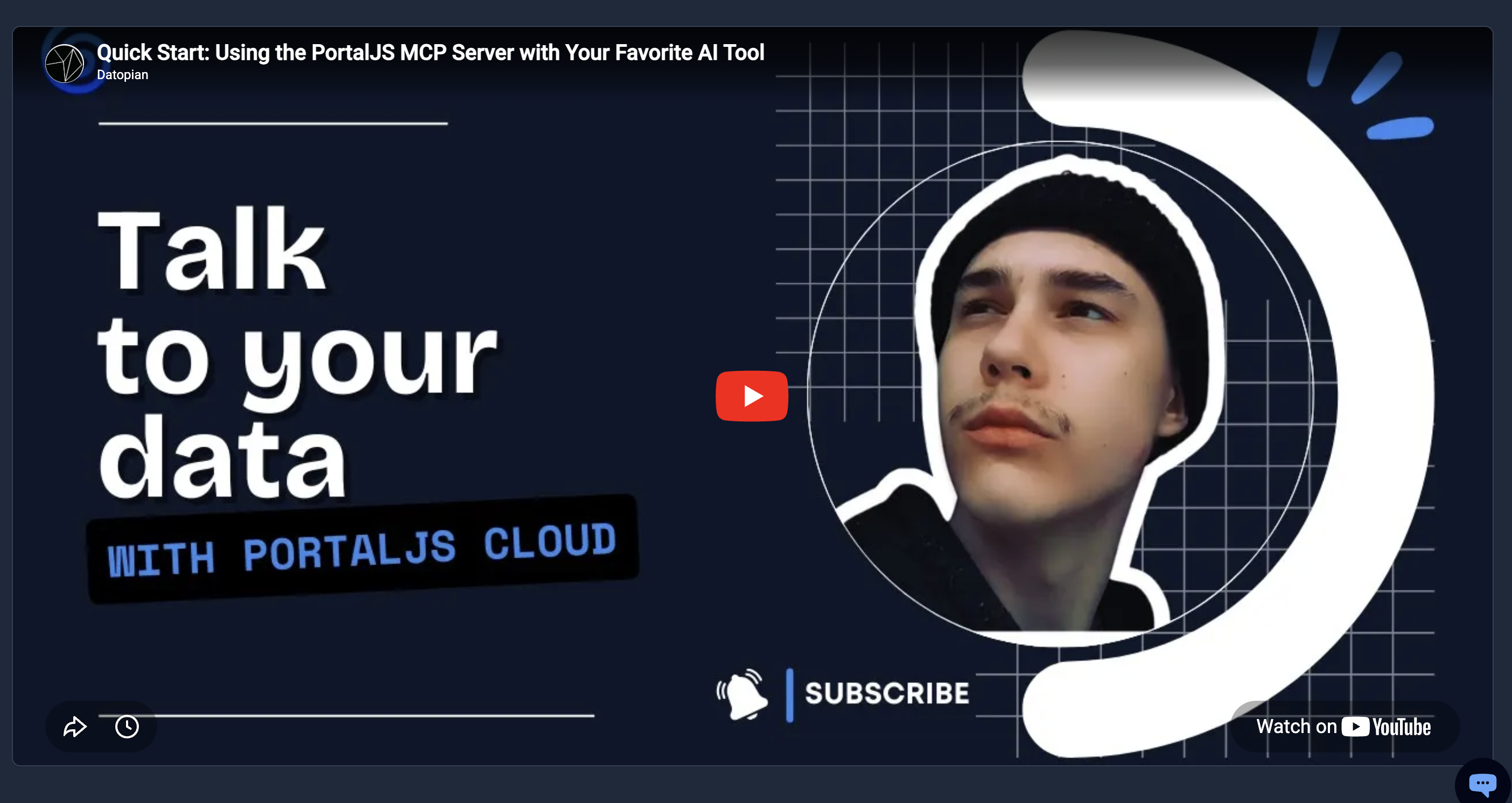
For a walkthrough, see the demo video embedded on the MCP server page.
Example: connect with Claude (web)
-
Copy your MCP URL from the MCP server page (see Find your MCP URL).
-
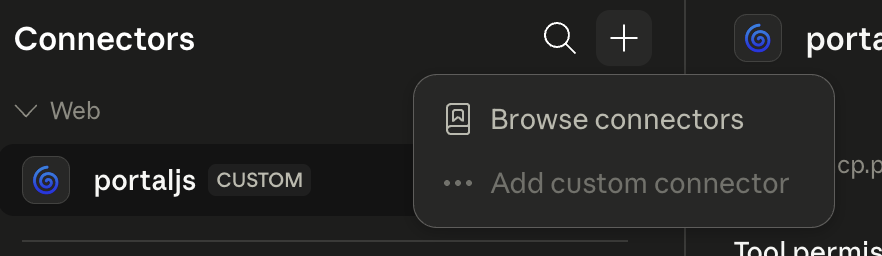
In Claude on the web, open Customize → Connectors.
-
Click Add custom connector.
-
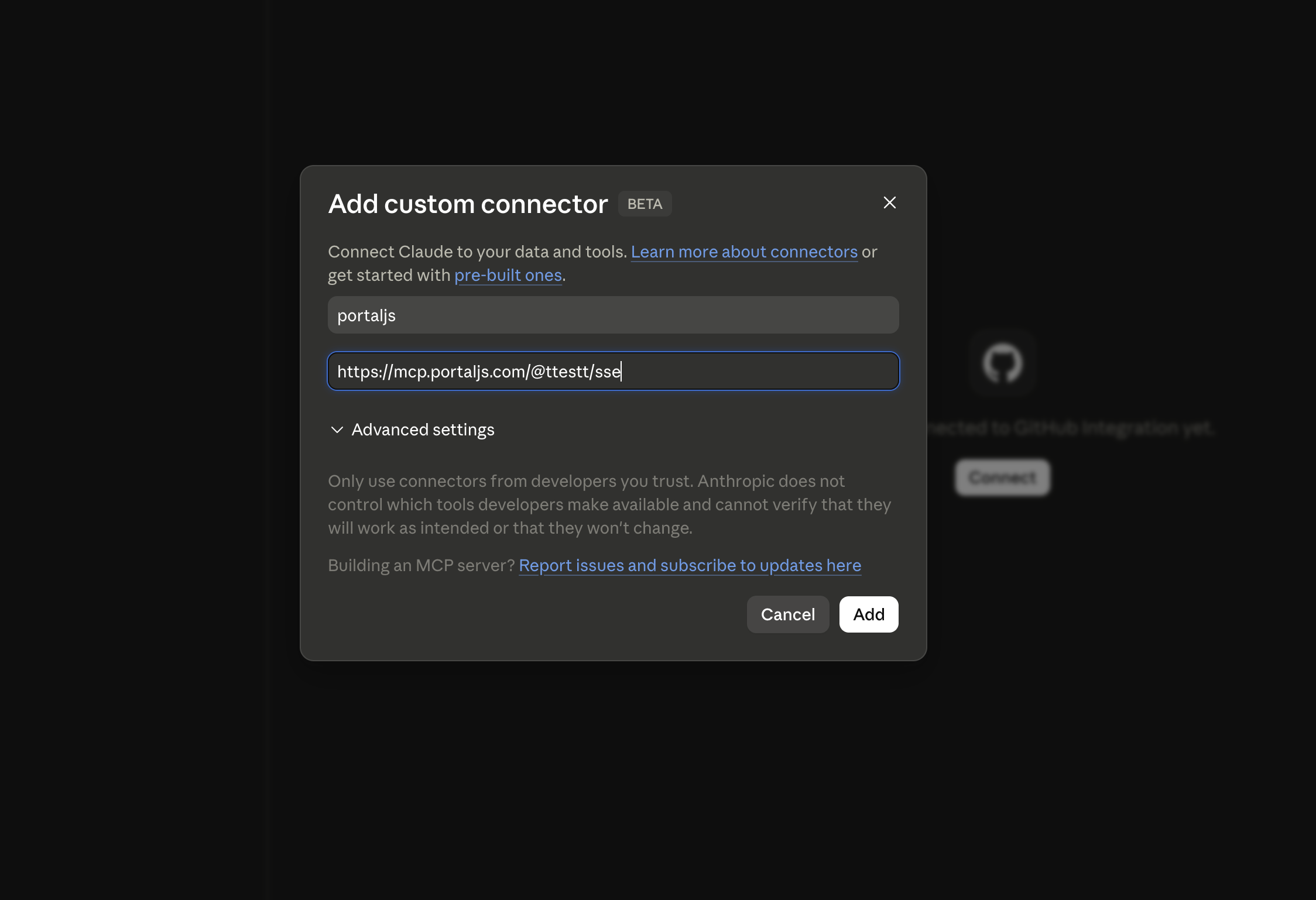
Give it a name (for example, My Data Portal) and paste your MCP URL into the Remote MCP server URL field, then confirm.
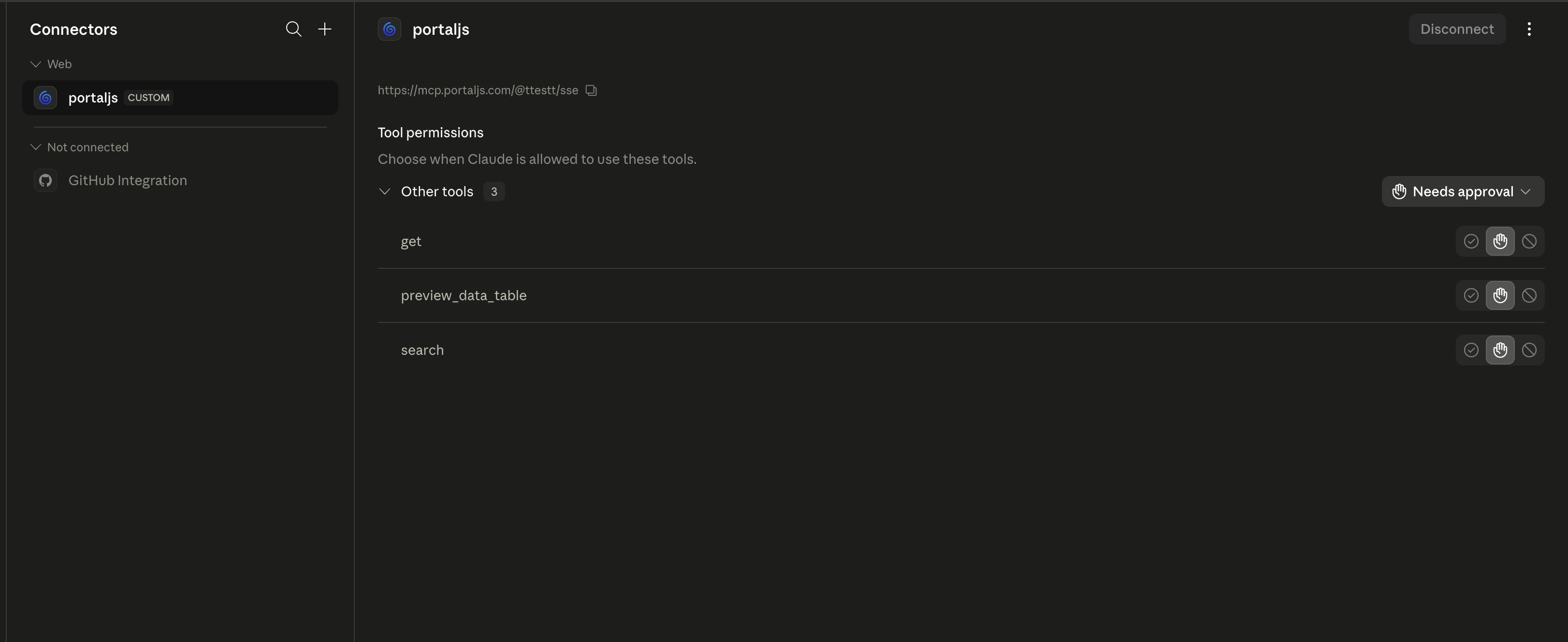
-
Start a new chat. Open the tools/attachments menu and make sure your connector is enabled.
-
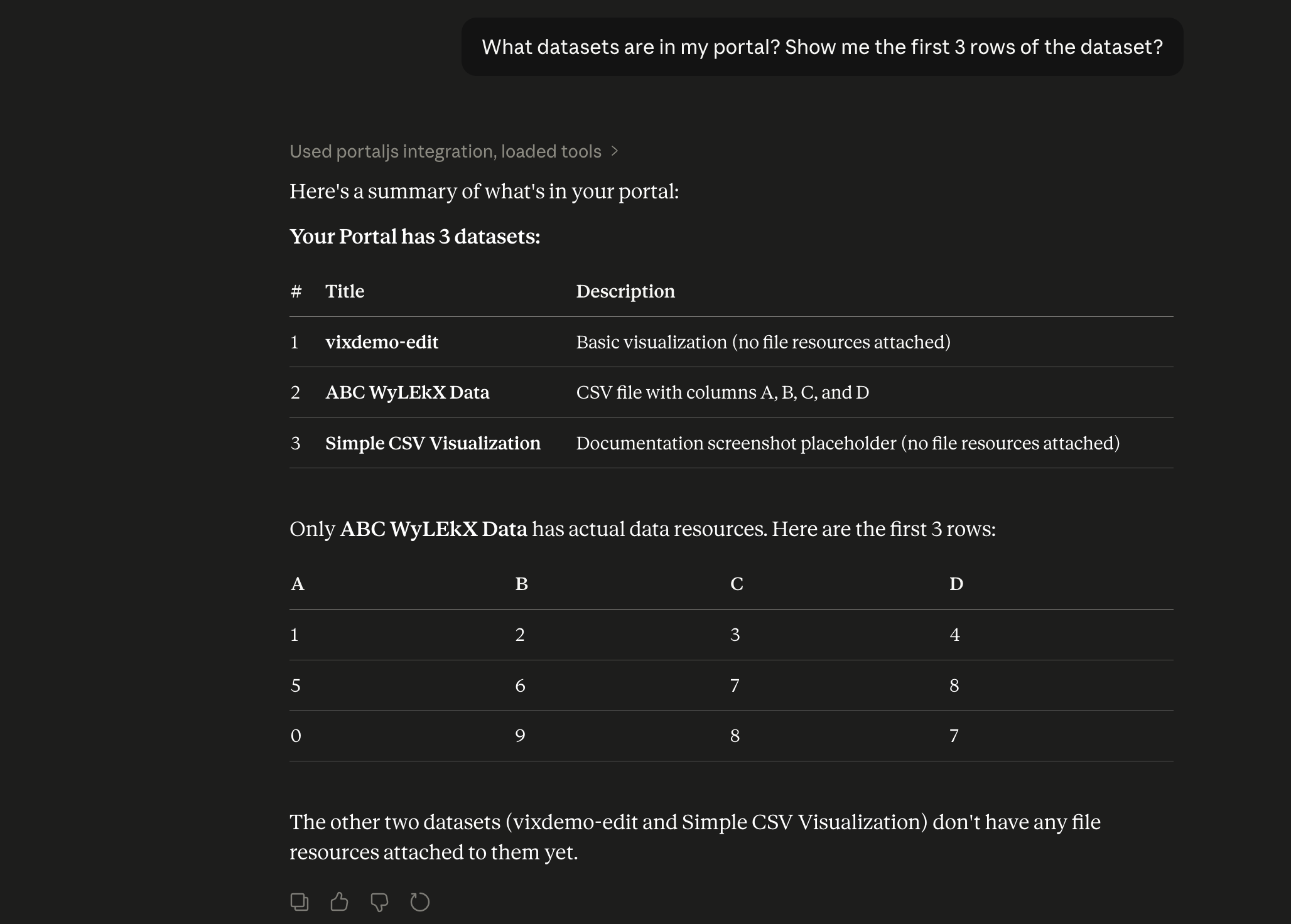
Ask a question about your data, for example: "What datasets are in my portal? Show me the first 5 rows of the dataset." Claude calls the MCP server and answers using your portal's data.
What the chatbot can do
Through the MCP server, the chatbot can:
- List datasets and resources in your portal.
- Read resource contents (CSV, JSON, etc.).
- Answer questions and produce summaries grounded in your data.
Private datasets are not exposed via the MCP server.
Troubleshooting
- Chatbot can't connect — confirm you pasted the full URL including the
/ssesuffix. - Chatbot sees no datasets — make sure at least one dataset is marked Public. See Datasets → Visibility.