
Datasets
Datasets are the core unit of content in PortalJS Cloud. Each dataset has metadata (title, description, tags, license, organization, group) and one or more resources (the actual files or URLs).
Every dataset must belong to exactly one organization. The organization owns the dataset and determines who can edit or delete it — see Permissions below.
The dataset metadata schema is based on the W3C DCAT vocabulary (Data Catalog Vocabulary), so datasets you publish here are interoperable with other DCAT-compatible catalogs. Resource-level schemas follow the Frictionless Table Schema specification.
See Metadata reference for every available field.
This page covers everything you can do with datasets and their resources.
Browse datasets
-
In the sidebar, click Datasets.
-
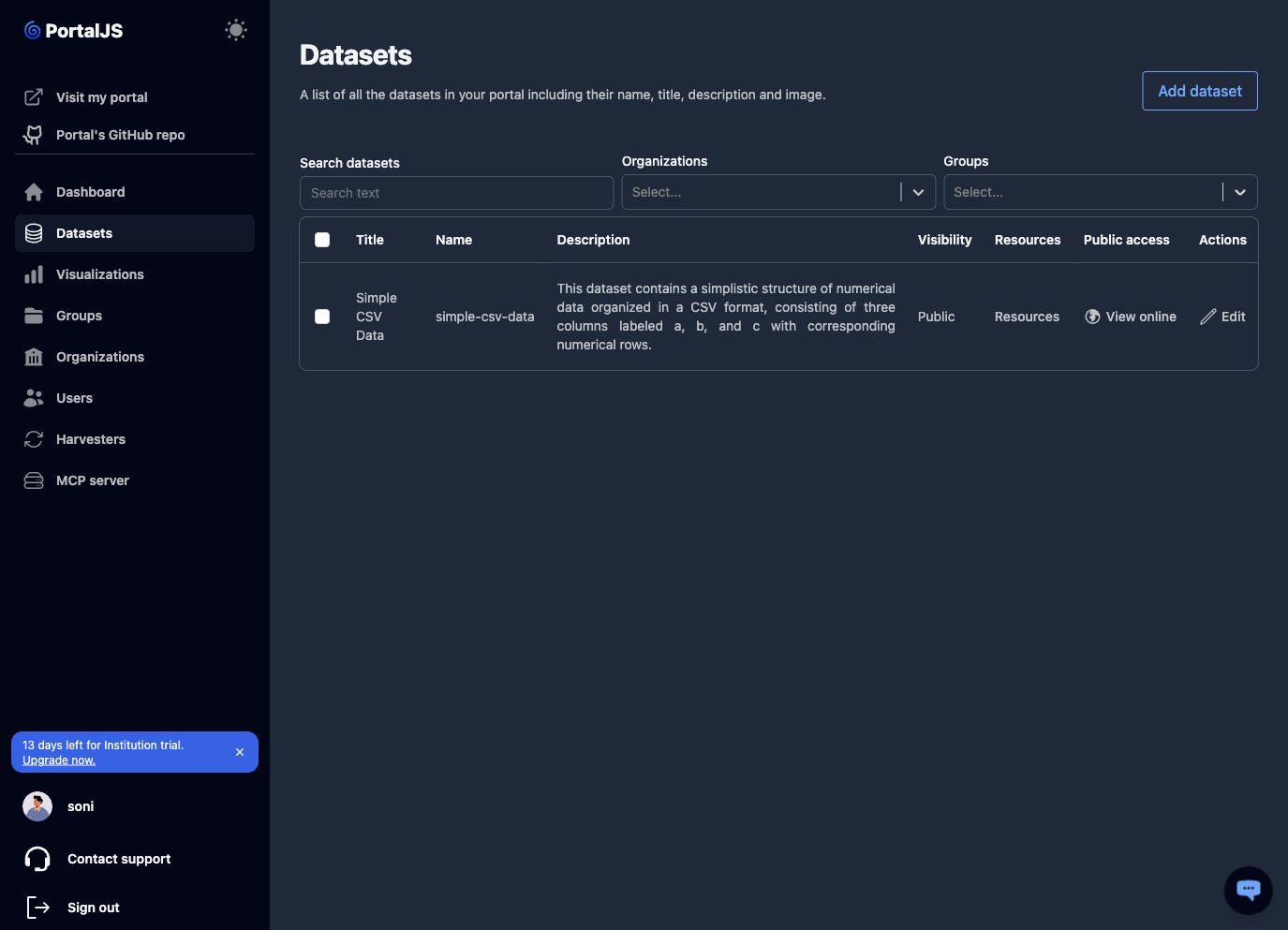
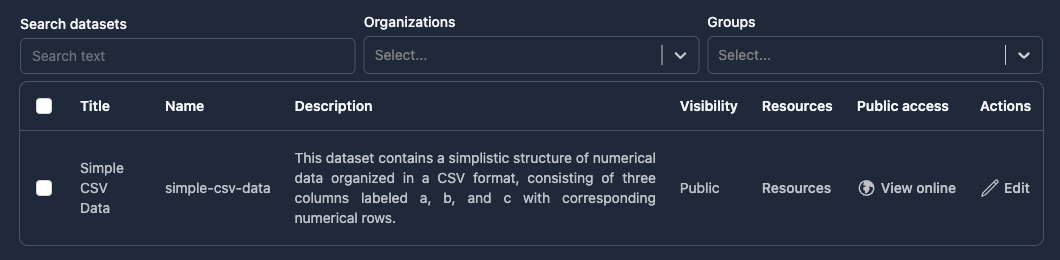
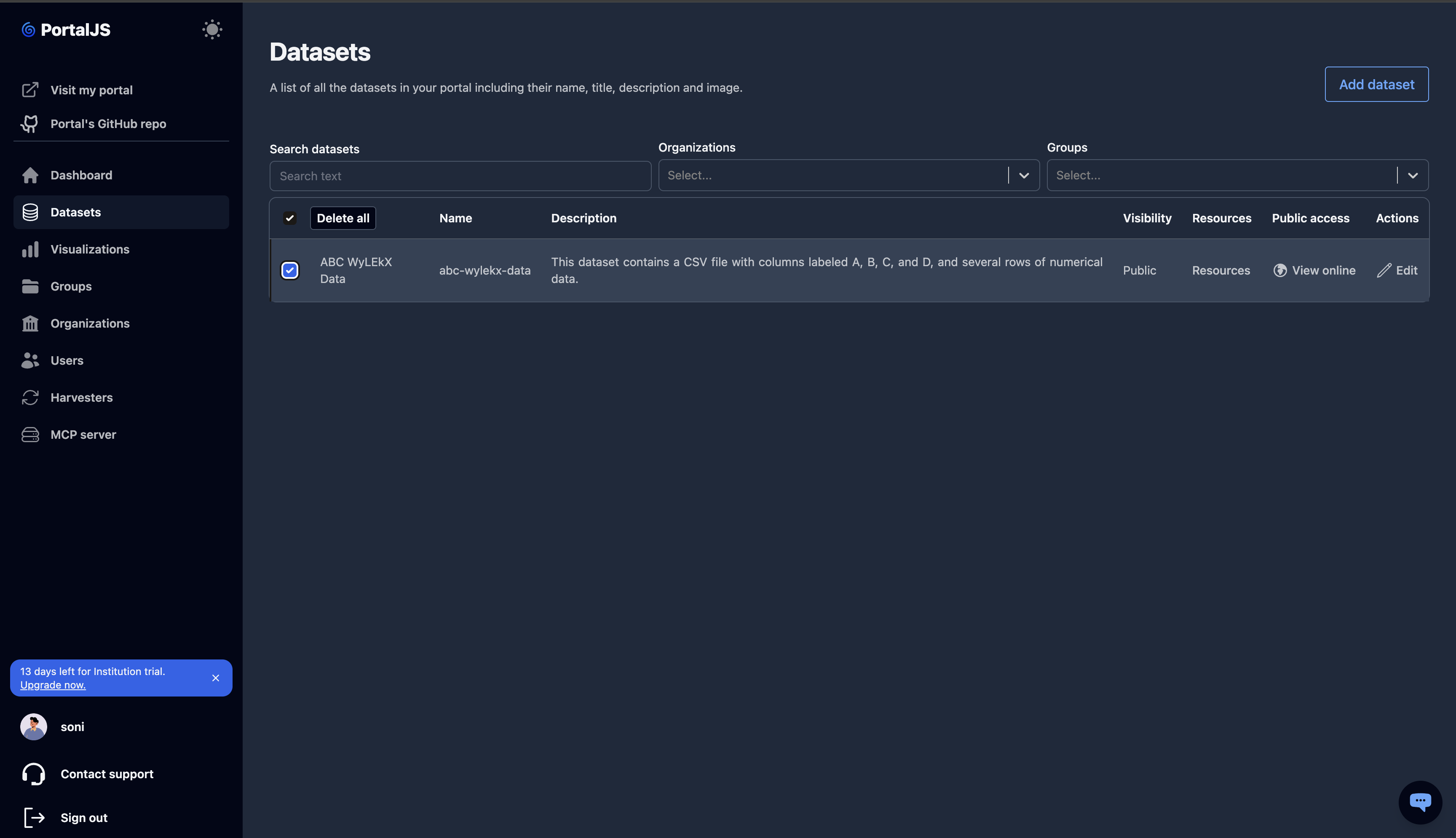
The table shows each dataset's title, name, description, visibility (Public/Private), resource count, public link, and an Edit action.
-
Use the search bar above the table to filter by query, organization, group, or tag.
-
Click View online on a row to open the dataset's public page in a new tab. Private datasets show "No online link" instead.
Create a dataset
PortalJS Cloud uses a two-step wizard: upload files, then edit metadata.
-
From the Datasets page (or the dashboard), click Add dataset.
-
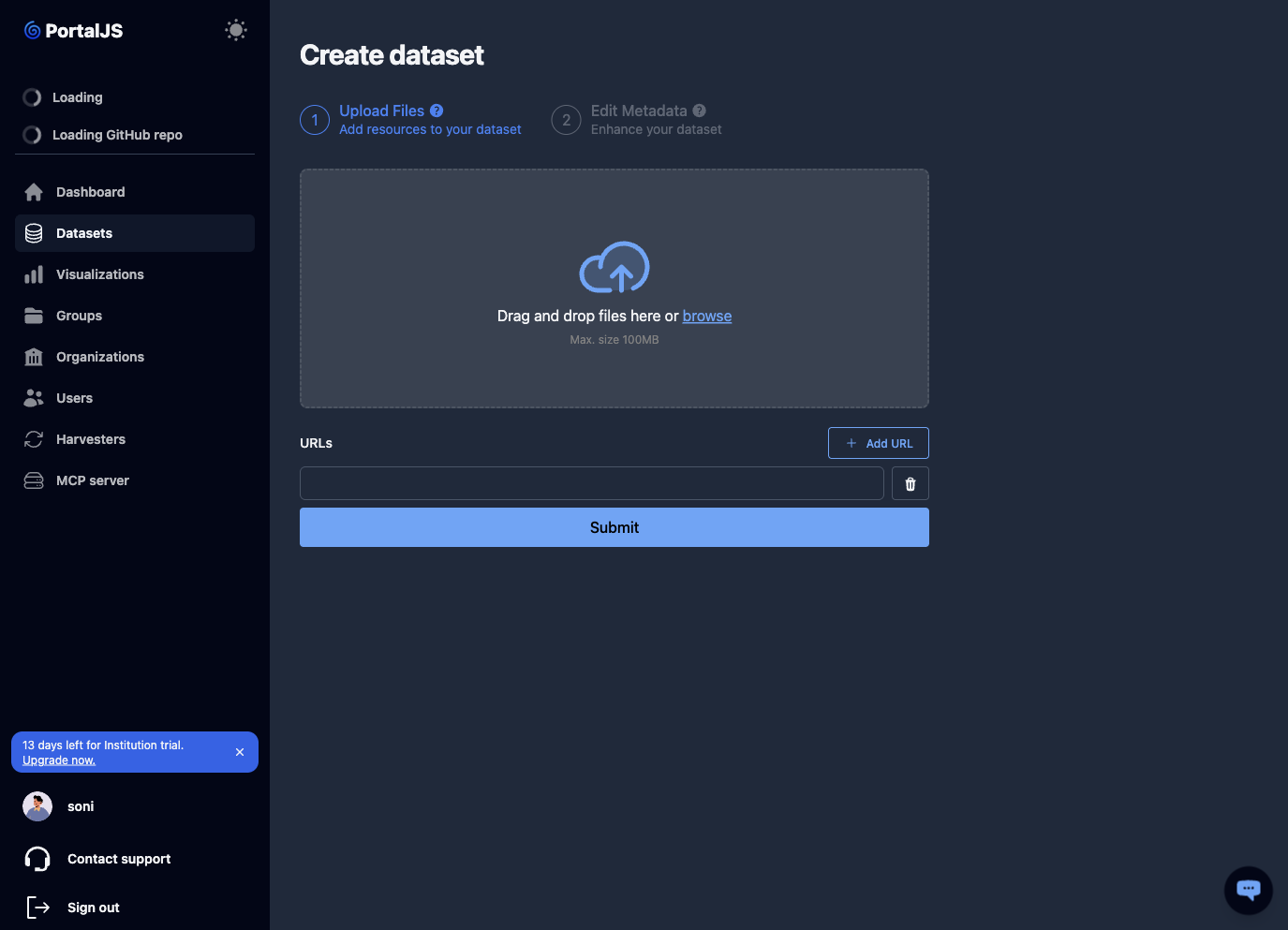
Step 1 — Upload files. Add one or more resources to the dataset:
- Drag and drop files into the upload area, or click to browse. Supported formats include CSV, Excel, JSON, GeoJSON, and more.
- Or add URLs that point to externally hosted files. Click Add URL to add more URL fields, then Submit.
-
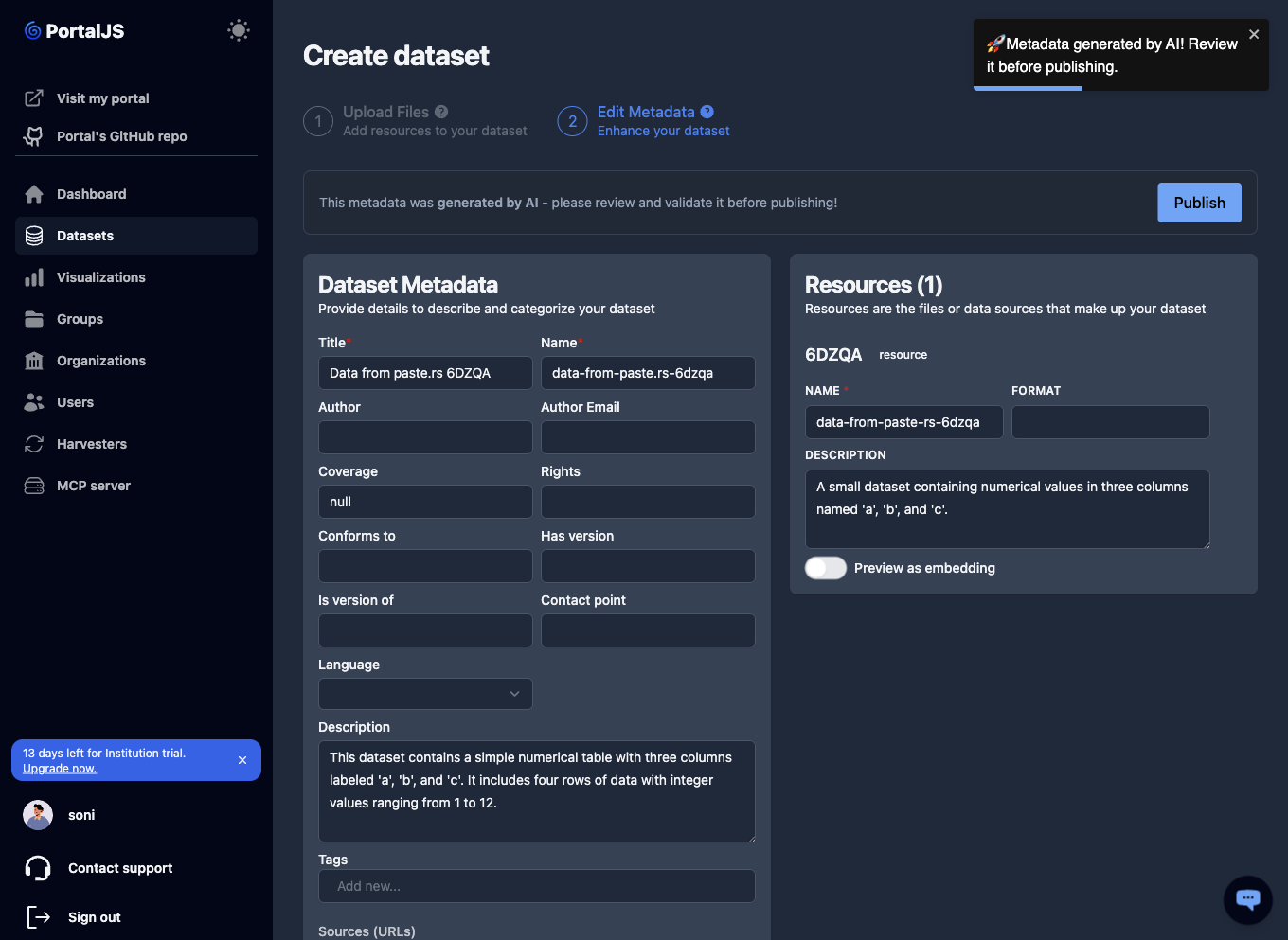
PortalJS Cloud parses your files. You will see a toast: "🚀 Metadata generated by AI! Review it before publishing."
-
Step 2 — Edit metadata. Review and adjust the auto-generated metadata. The most important fields:
- Title and Name (URL-safe slug).
- Description.
- Organization — required. The dataset is owned by this organization, and only its members can edit it (see Permissions). The dropdown lists only organizations you belong to.
- Tags, Groups.
- Visibility (Public/Private), Language, plus DCAT fields like Rights, Coverage, Contact point, etc.
For every available field, see Metadata reference.
-
Click Publish to create the dataset.
Edit a dataset
-
From the Datasets list, click Edit on the dataset row.
-
Update any field on the edit form: title, description, tags, organization, group, visibility, license, custom fields.
-
Click Save.
Delete datasets
You can delete one or many datasets at once.
-
On the Datasets list, tick the checkbox to the left of each dataset you want to delete. Use the header checkbox to select all.
-
Click Delete all in the toolbar that appears above the table.
-
Confirm. Deleted datasets are removed from both the admin dashboard and the public portal.
Manage resources
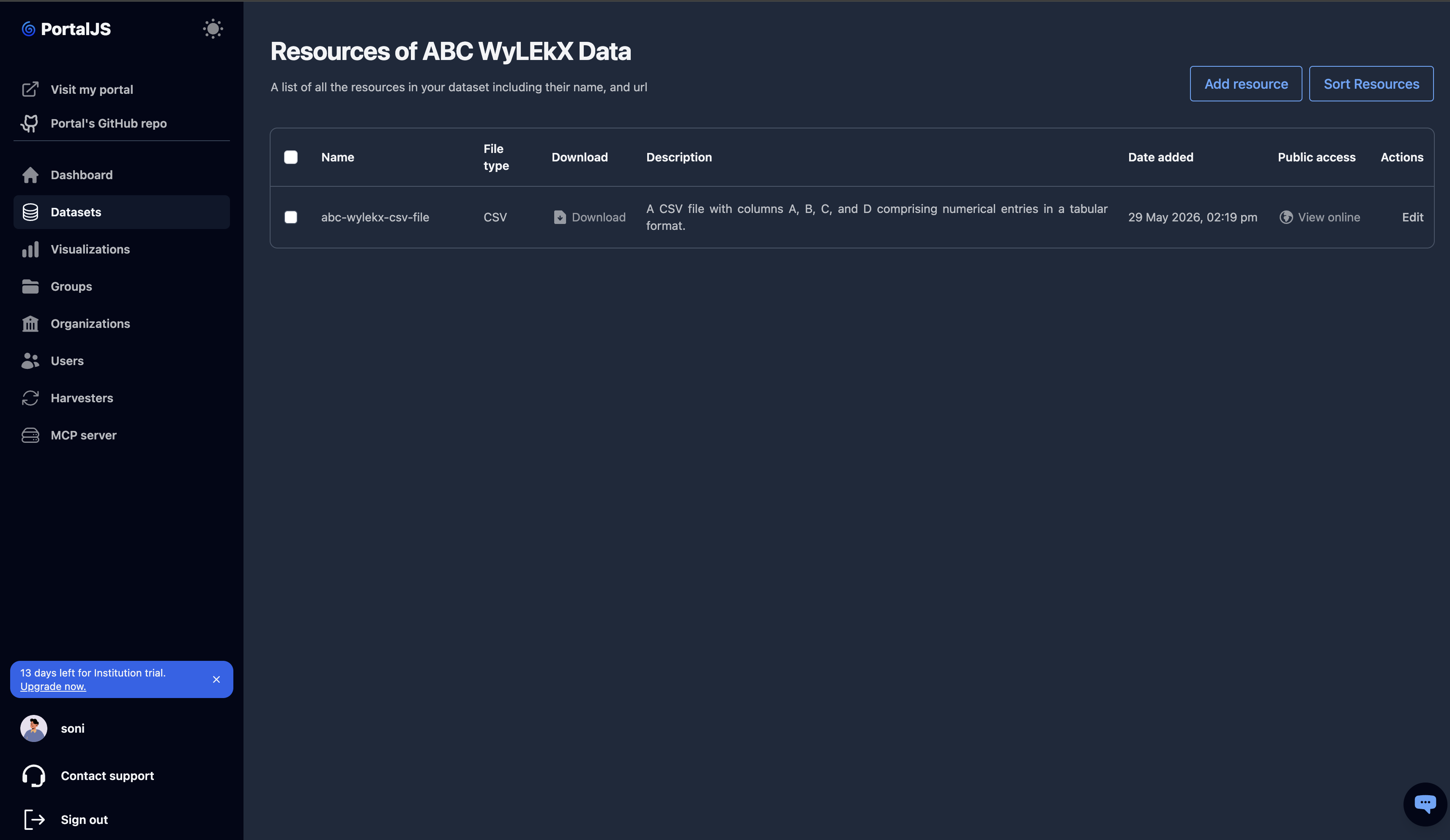
Resources are the files (or URLs) attached to a dataset. Open a dataset's resources by clicking the Resources link on its row.
Add a resource
-
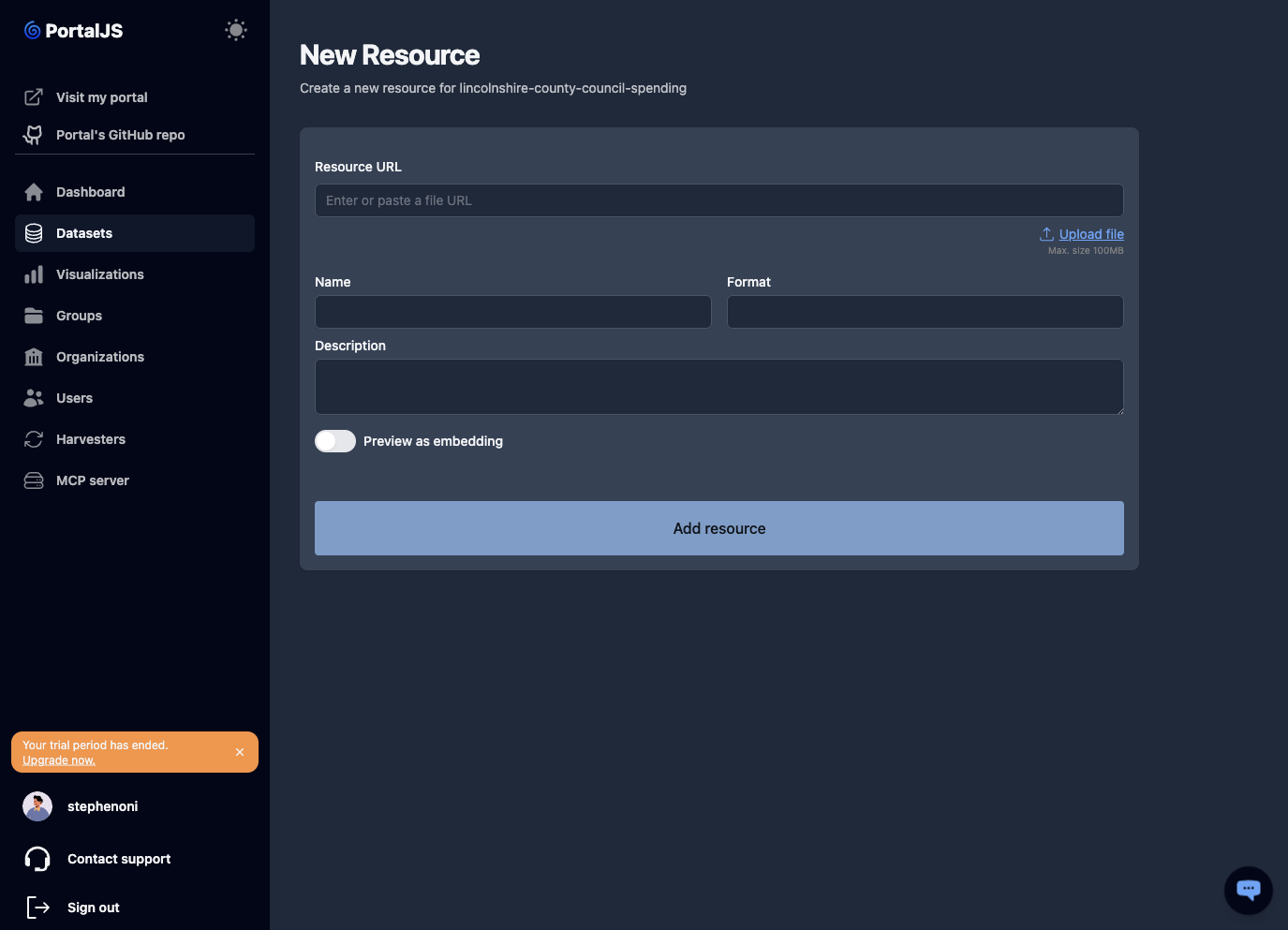
From the dataset's resources page, click Add resource.
-
Fill in the form: upload a file or paste a URL, set the resource name, format, description, and any other fields. For the full list of resource fields including the Table Schema, see Resource fields and Table Schema.
-
Click Save. You return to the resources list.
Edit a resource
-
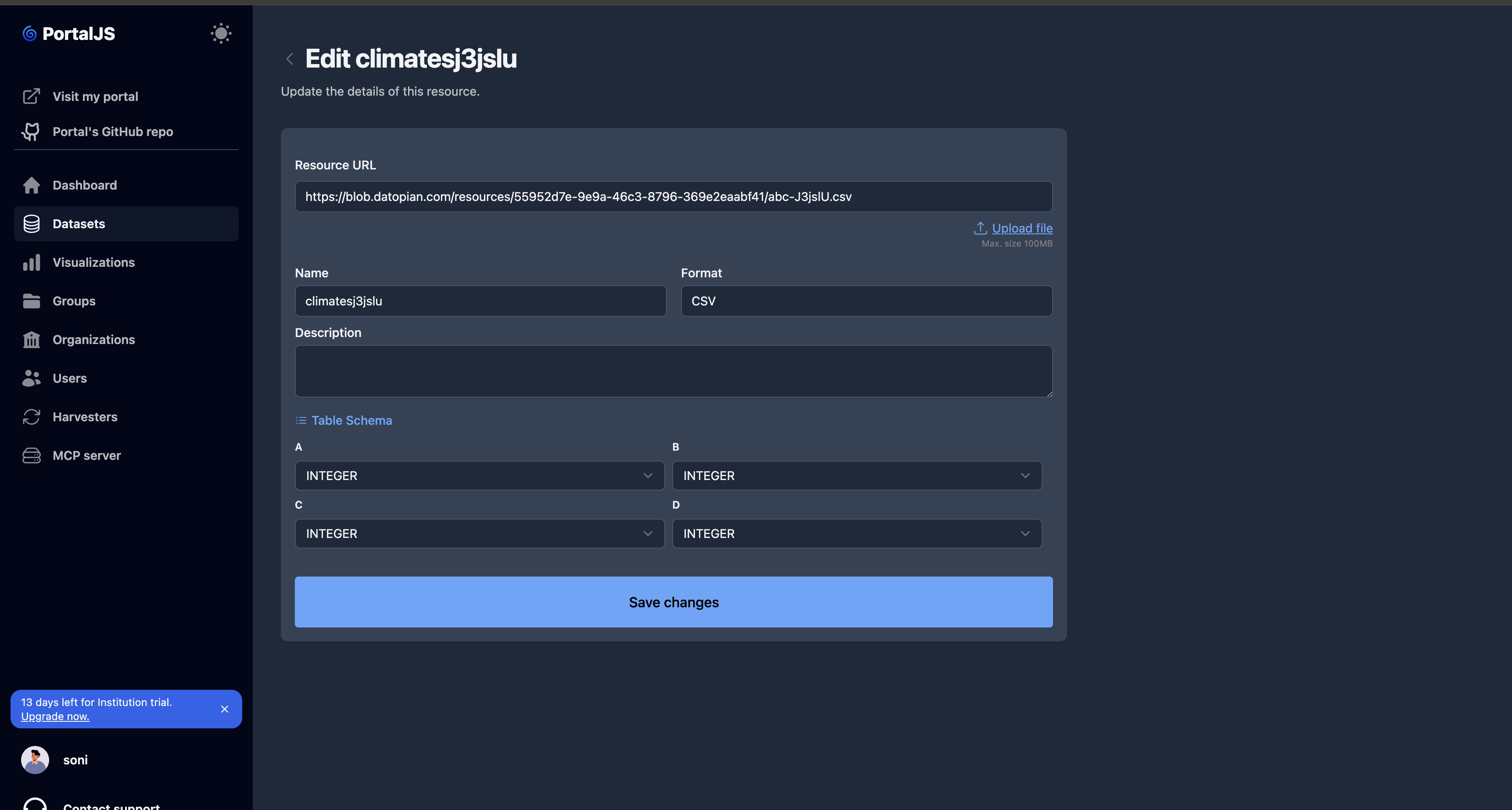
Click the resource row (or its edit icon) on the resources list.
-
Adjust fields on the edit form and click Save.
Sort resources
-
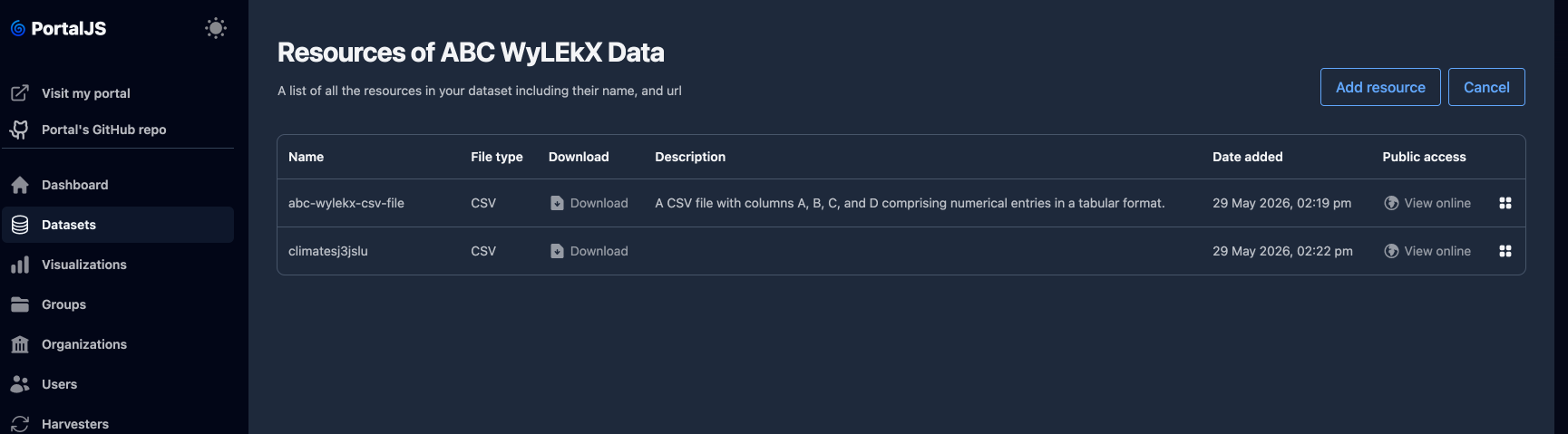
On the resources page, click Sort Resources.
-
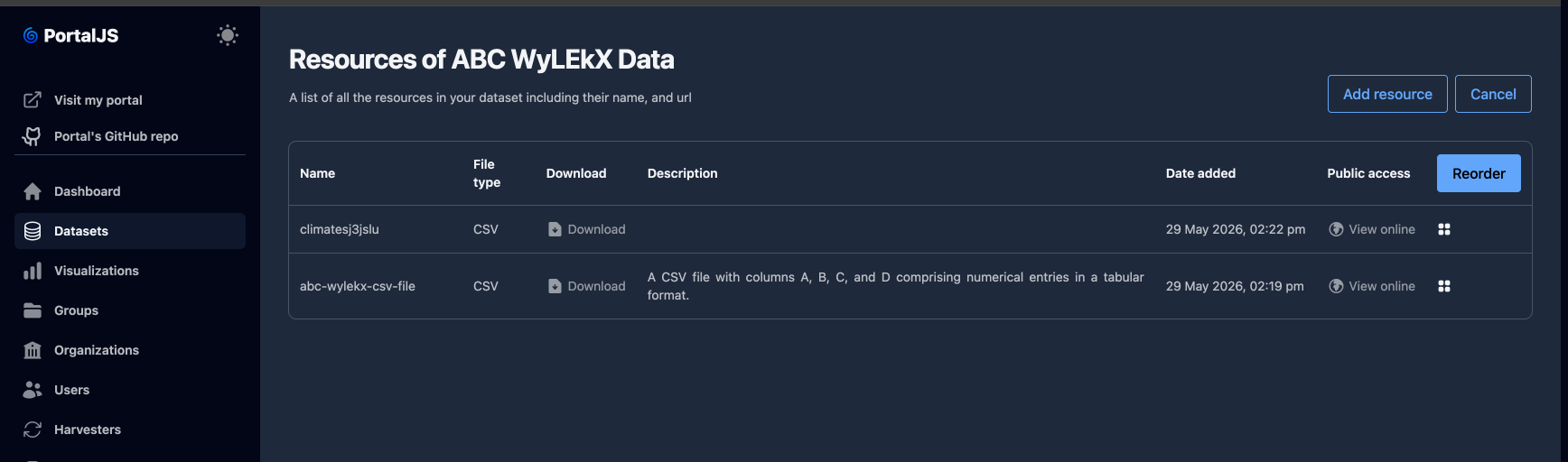
Drag rows up and down to change the order in which resources appear on the public dataset page.
-
Save the new order. Click Cancel to discard.
Delete a resource
Delete a resource from inside its edit form, or by selecting it in the resources list (if bulk delete is available). The dataset itself remains.
Permissions
Who can edit or delete a dataset is determined by organization membership, following the standard CKAN role model. Every dataset is owned by one organization; to act on it you must be a member of that organization with a sufficient role.
| Role in the owning org | Browse | View private datasets | Create | Edit | Delete |
|---|---|---|---|---|---|
| Not a member | Public datasets only | — | — | — | — |
| Member | Yes | Yes | — | — | — |
| Editor | Yes | Yes | Yes | Yes | Yes |
| Admin | Yes | Yes | Yes | Yes | Yes (plus manage members) |
| Sysadmin (admin of the main org) | All datasets in the portal | Yes | Yes | Yes | Yes |
Practical consequences:
- If you do not see Edit on a dataset's row, you are not an editor or admin in the dataset's organization.
- If you cannot select an organization on the create form, you are not a member of any organization with create rights. Ask a sysadmin to add you — see Organizations → Manage members.
- A dataset cannot be moved to an organization you are not a member of.
For inviting members and assigning roles, see Organizations → Manage members.
Metadata reference
The dataset metadata model is DCAT-based (W3C Data Catalog Vocabulary). Fields shown below are exposed on both the create wizard and the edit form.
Dataset fields
| Field | Type | Required | Description |
|---|---|---|---|
| Title | string | yes | Human-readable name shown across the portal. |
| Name | string (slug) | yes | URL-safe identifier. Must not contain spaces or the . character. Auto-generated from the title; editable. |
| Description | text | no | Long-form description (stored in CKAN as notes). |
Organization (owner_org) | reference | yes | The organization that owns the dataset. Controls permissions. |
| Groups | list of references | no | Thematic groups the dataset belongs to. See Groups. |
| Tags | list of strings | no | Free-form keywords. |
Visibility (private) | boolean | no | true hides the dataset from the public portal. Default: public. |
| Language | enum | no | One of EN, FR, ES, DE, IT. |
| Author | string | no | Name of the dataset author. |
| Author email | string | no | Contact email for the author. |
Contact point (DCAT dcat:contactPoint) | string | no | Primary contact for questions about the dataset. |
Coverage (DCAT dct:spatial / dct:temporal) | string | no | Spatial or temporal coverage description. |
Rights (DCAT dct:rights) | string | no | Statement of rights, license, or usage terms. |
Conforms to (DCAT dct:conformsTo) | string | no | Standard or schema the dataset conforms to. |
Has version (DCAT dct:hasVersion) | string | no | Related newer version of this dataset. |
Is version of (DCAT dct:isVersionOf) | string | no | Related older/parent dataset this is a version of. |
Sources (source) | list of URLs | no | Upstream source URLs the data was derived from. |
CKAN allows arbitrary custom fields (extras) too; if your portal has been customized with additional fields, they will appear on the form alongside the standard ones.
Resource fields
A dataset has one or more resources. Each resource has its own metadata.
| Field | Type | Required | Description |
|---|---|---|---|
| Name | string | yes | Display name of the resource. |
| Format | string | no | File format (CSV, JSON, XLSX, GeoJSON, PDF, etc.). Auto-detected from the file; editable. |
| Description | text | no | What this resource contains. |
| URL | URL | yes | Either the upload URL (managed by PortalJS Cloud) or an external link. |
Preview as embedding (iframe) | boolean | no | Only shown for external URLs. When enabled, the public portal renders the resource in an <iframe> preview. |
Table Schema (schema) | object | no | For tabular resources (CSV), the list of columns and their inferred types. See Table Schema below. |
Table Schema
For CSV resources, PortalJS Cloud automatically computes a Table Schema during the upload step, following the Frictionless Table Schema specification.
How it is calculated:
- When you upload a CSV (or supply a CSV URL), the parser reads the first 500 rows.
- It infers each column's name from the header row.
- It infers each column's type from the values in those 500 rows.
- The resulting schema (
{ fields: [{ name, type }, ...] }) is attached to the resource and stored alongside the dataset.
Type inference picks one of the following Frictionless types per column:
any, array, boolean, date, datetime, duration, geojson, geopoint, integer, number, object, string, time, year, yearmonth
Reviewing and editing the schema:
-
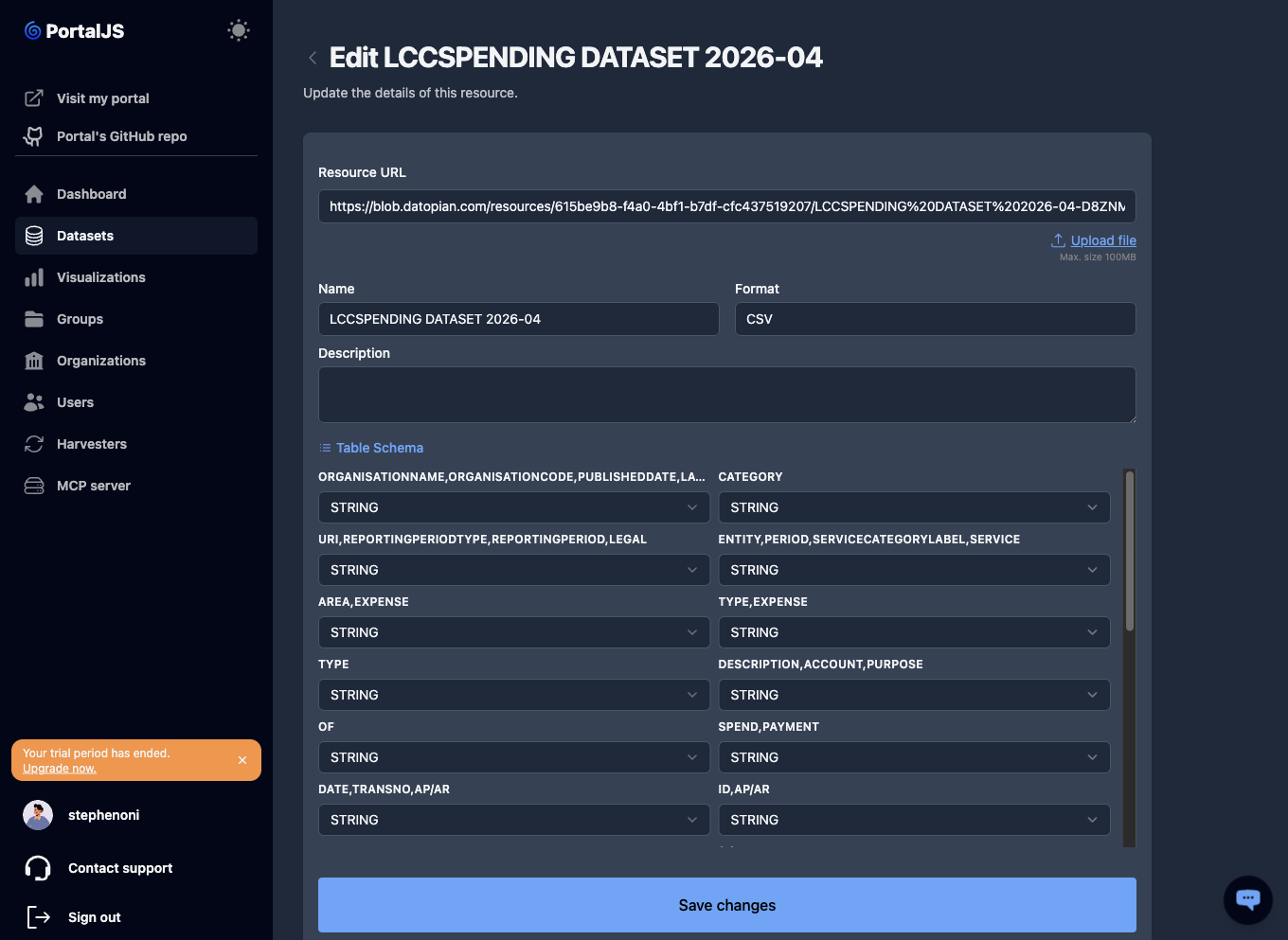
On the resource form (during dataset creation or when editing a resource), expand the Table Schema section.
-
Each row shows a column name (from the CSV header) and its inferred type. Change the type via the dropdown if the inference is wrong.
-
Save. The corrected schema is persisted and made available via the CKAN API and the public portal.
When the schema is not computed:
- Non-CSV resources (JSON, XLSX, PDF, etc.) do not get a Table Schema — only their format and basic descriptor.
- External URLs that the parser cannot fetch are skipped — you can still edit the resource and add a schema manually if needed.
Visibility — public vs private
Each dataset has a Visibility field:
- Public — appears on the public portal and is shown in search results.
- Private — visible only inside the admin dashboard; hidden from the public site.
Toggle this from the edit form. The datasets list shows the current state in the Visibility column.