
Getting started
This page walks you through creating your PortalJS Cloud account, signing in, and finding your way around the admin dashboard.
Sign up
-
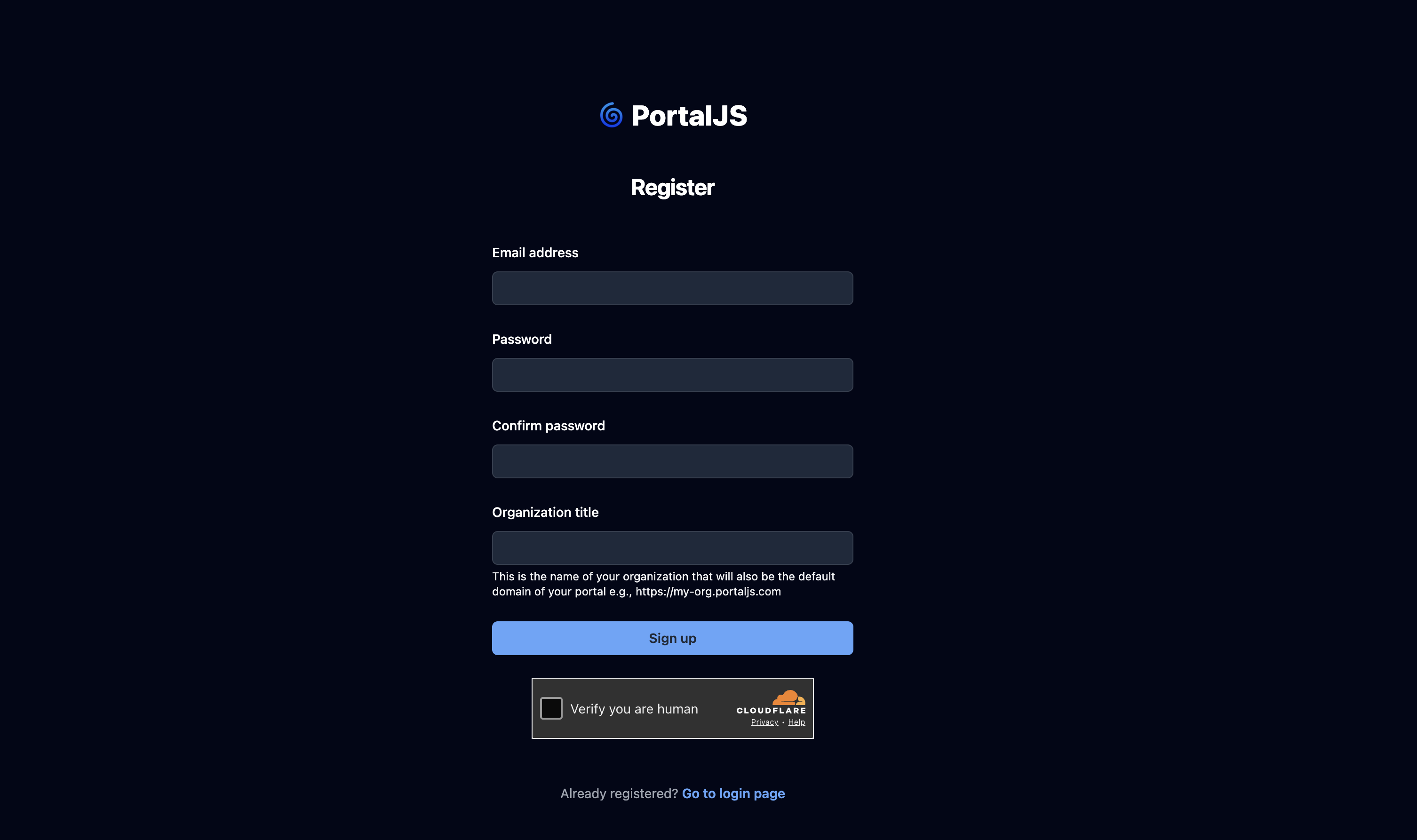
Open the PortalJS Cloud sign-up page.
-
Fill in the form:
- Email address — used to sign in.
- Password and Confirm password.
- Organization title — the display name for your organization. A slugified version of this becomes your portal subdomain, for example
my-org.portaljs.com.
-
Complete the verification challenge and click Sign up.
-
After your account is created, PortalJS Cloud automatically:
- Signs you in.
- Creates a GitHub repository for your portal frontend.
- Deploys your public portal.
You can keep working in the admin dashboard while the portal builds in the background.
Sign in
-
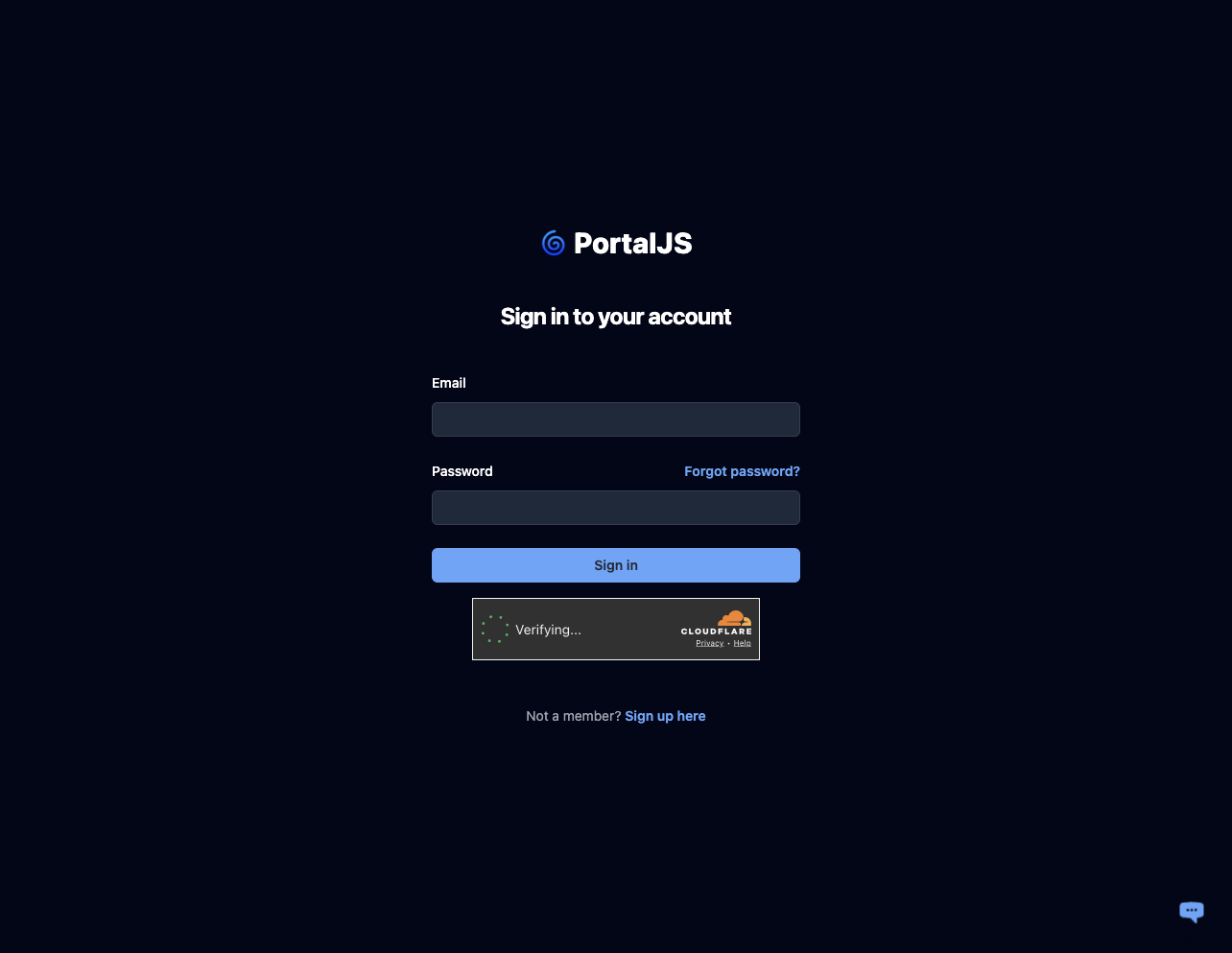
Open the sign-in page.
-
Enter your email and password, complete the verification challenge, and click Sign in.
-
You land on the Datasets page by default.
Forgot your password
-
From the sign-in page, click Forgot password?.
-
Enter your email and submit. You will receive a reset email.
-
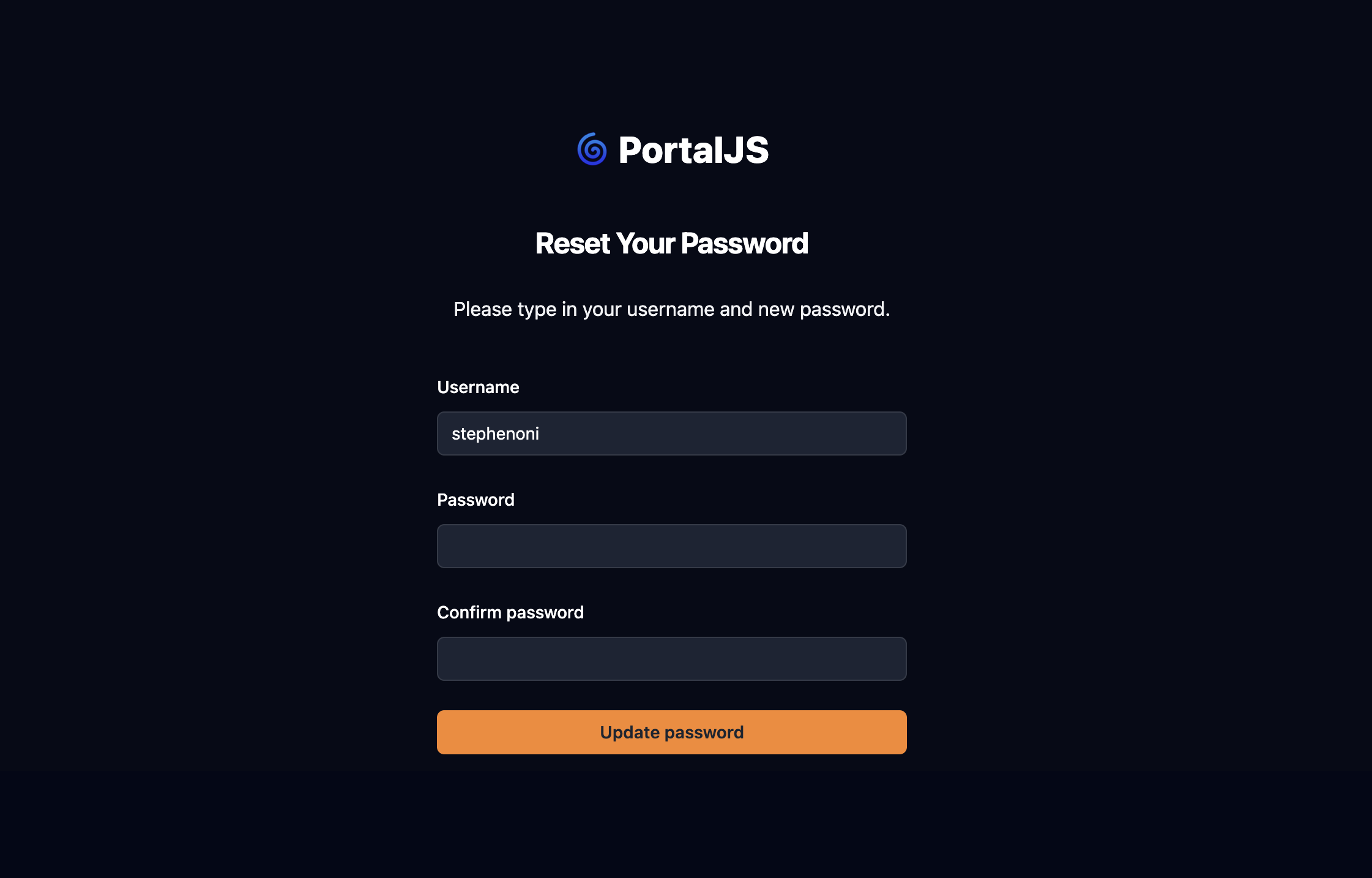
Click the link in the email and set a new password on the reset page.
Tour of the admin dashboard
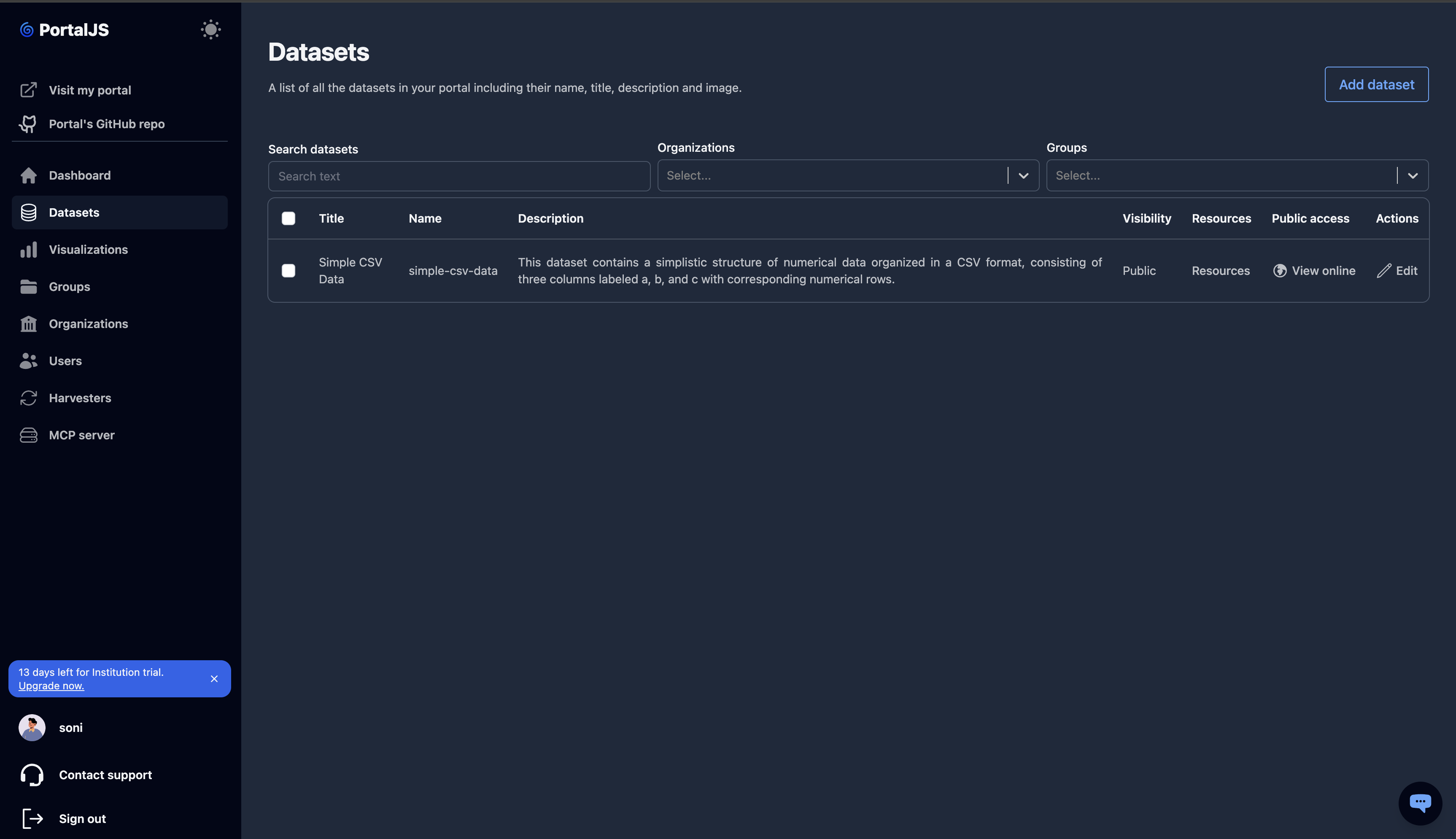
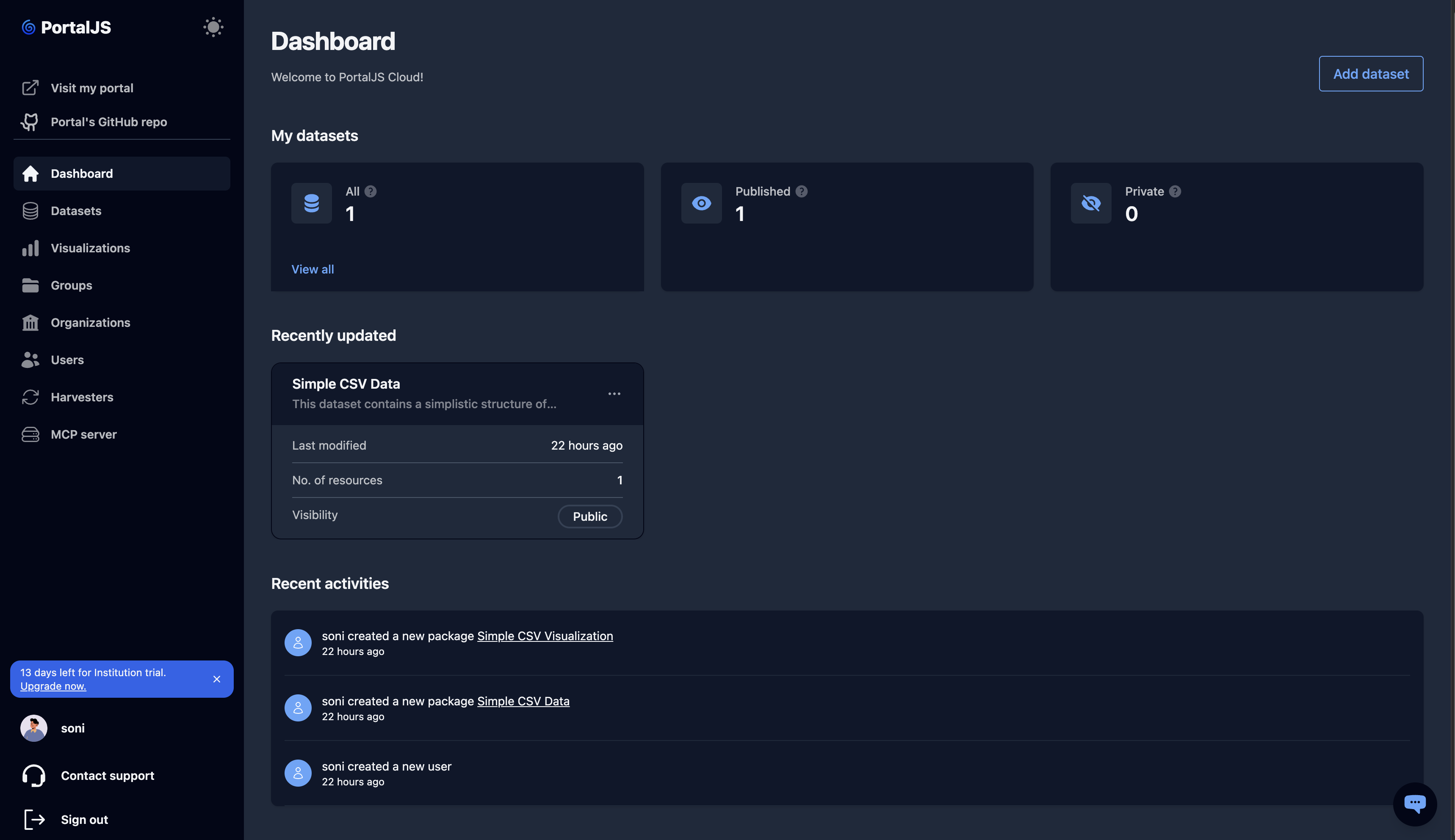
After signing in, you see the admin shell. The sidebar on the left is the main navigation.
Sidebar — top
- Create my portal / Visit my portal — shows the current deployment state of your public portal site. See Portal.
- Portal repo link — opens the GitHub repository that holds your portal frontend code.
Sidebar — navigation
| Item | What it does |
|---|---|
| Dashboard | Stats, recently updated datasets, activity stream |
| Datasets | Browse, create, edit datasets and their resources |
| Visualizations | Publish and manage visualizations |
| Groups | Categorize datasets into thematic groups |
| Organizations | Manage organizations and their members |
| Users | Invite and list users in your portal |
| Harvesters | Configure automated dataset syncing from external sources |
| MCP server | Connect AI chatbots to your portal data |
Sidebar — bottom
- Plan status (during trial) — shows your current plan and trial date.
- Your profile — opens the profile/API-keys area.
- Suggest a feature — opens a feedback form.
- Sign out.
Dashboard widgets
The main Dashboard page shows:
- Datasets stats — counts and recent activity.
- Recently updated datasets — quick links to your latest work.
- Activity stream — chronological log of changes in the portal.
Next steps
- Wait for your portal to finish building, then visit your public site.
- Create your first dataset.
- Invite team members.