
Users
The Users page lists the users in your portal and lets you invite, edit, and remove them. For how roles work within an organization, see Organizations → Manage members.
Permissions
What you can do on the Users page depends on whether you are a sysadmin (admin of the main organization).
| Action | Required role |
|---|---|
| See all users in the portal | Sysadmin |
| See users in your own organizations only | Organization admin / editor / member |
| Invite a user | Admin of the target organization (or sysadmin) |
| Edit another user's profile | Sysadmin |
| Edit your own profile | Any user (see Account) |
| Delete users | Sysadmin |
Sysadmins themselves are not shown in the list.
Browse users
-
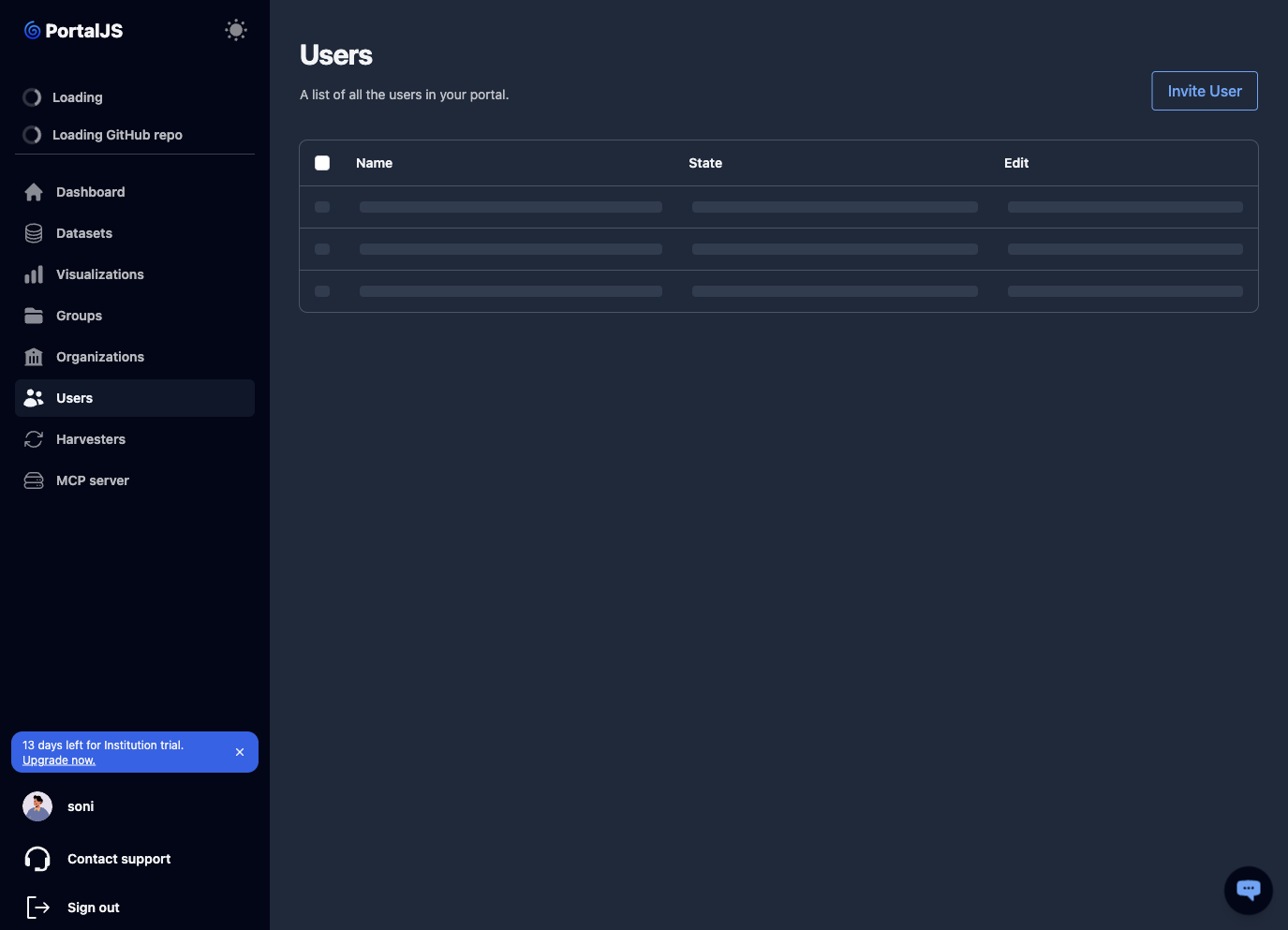
In the sidebar, click Users.
-
The table has three columns:
- Name — the user's username.
- State —
activefor users who have completed sign-up, orpendingfor invited users who have not yet set a password. - Edit — opens the user's profile for editing.
Which users appear depends on your role: sysadmins see every user in the portal, while other users see only the members of organizations they belong to.
Invite a user
-
On the Users page, click Invite User.
-
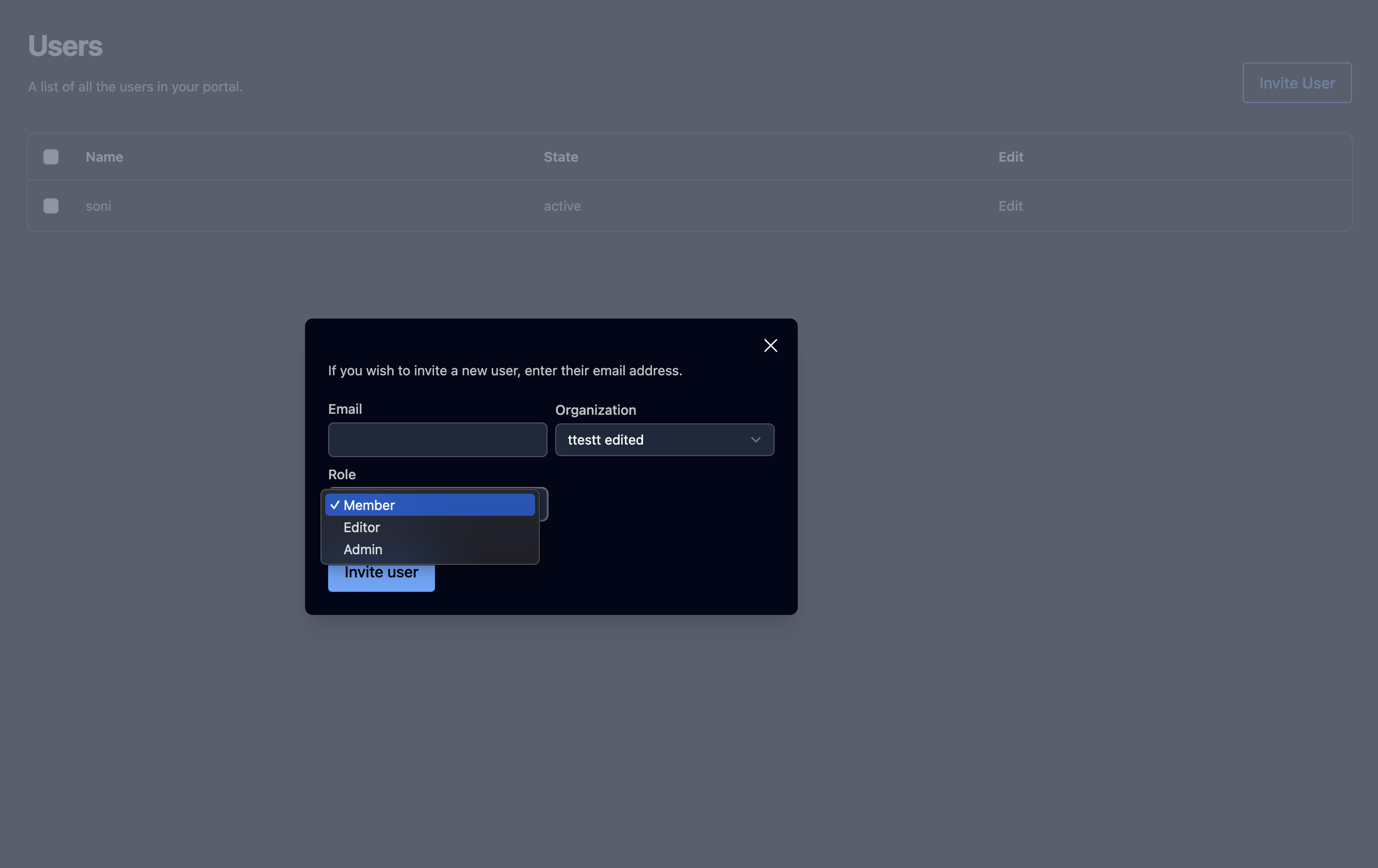
In the modal, fill in:
- Email — email address of the person to invite (required).
- Organization — the organization to add them to (required).
- Role — Member, Editor, or Admin within that organization.
-
Click Invite user.
What happens next depends on whether the email already belongs to a portal user:
- Email not yet registered. A new account is created, added to the chosen organization with the chosen role, and left in a pending state. The person receives an email with a link; once they click it and set a password, their account becomes active.
- Email belongs to an existing user. The user is added to the organization with the chosen role. No email is sent and no further action is required from them.
In both cases the user appears in the list immediately. A pending user is listed with the pending state until they complete sign-up.
Edit a user
-
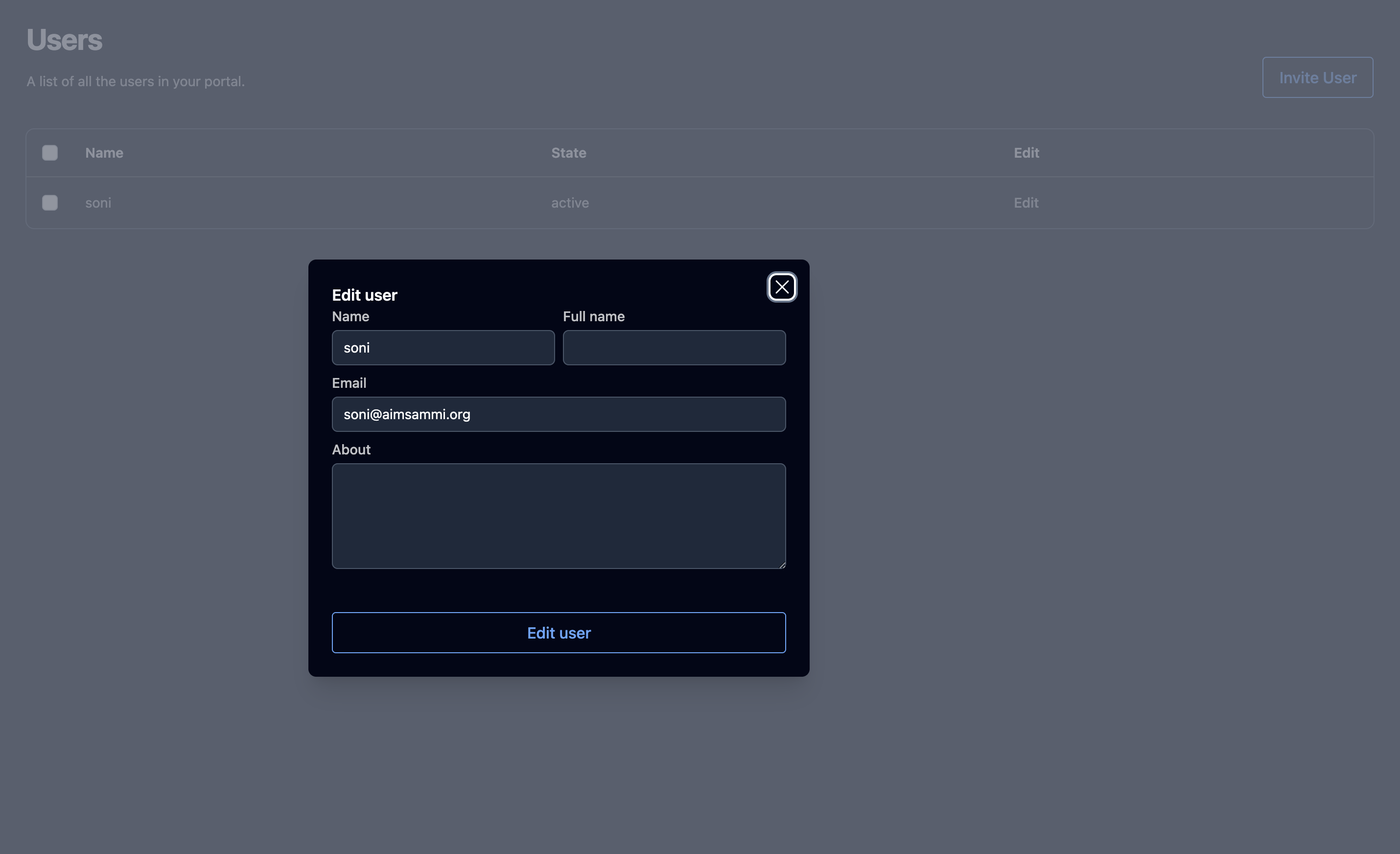
From the Users list, click Edit on the user's row. The profile form opens in a modal.
-
Editable fields:
- Name (username) — editable only when editing your own account; disabled otherwise.
- Full name.
- Email — editable only when editing your own account; disabled otherwise.
- About.
-
Click Edit user to save.
To change a user's role within an organization, use the organization's Members tab instead — see Organizations → Manage members.
Delete users
Deleting users requires sysadmin privileges.
-
On the Users list, tick the checkbox to the left of each user you want to delete. Use the header checkbox to select all.
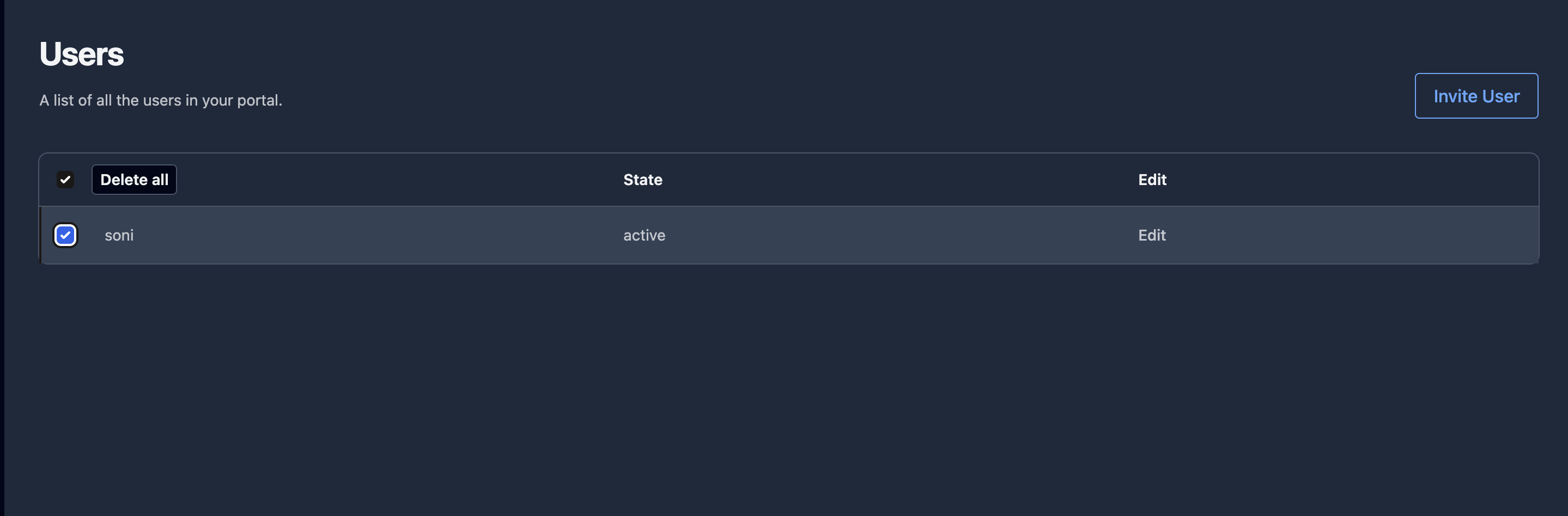
-
Click Delete all in the toolbar that appears above the table.
-
Confirm.
You cannot delete your own account. Attempting to include it returns: "You cannot delete your own account."
Users vs. organization members
Every user belongs to one or more organizations, and their ability to manage datasets comes from their role within those organizations — not from the Users page itself. Inviting from the Users page is functionally the same as inviting from an organization's Members tab; the only difference is that here you pick the organization from a dropdown.
A user can belong to multiple organizations, each with an independent role (member, editor, or admin). See Organizations → Roles.