
Organizations
Organizations own datasets and control who can edit them. Every dataset belongs to exactly one organization. Every PortalJS Cloud account has a main organization created at sign-up; you can add more.
Note: Creating and deleting organizations requires sysadmin privileges (admin of the main organization). Editing an organization requires admin role on that specific organization.
The main organization
The main organization is created automatically when you sign up. Its slug (name) matches your portal subdomain — <main-org-slug>.portaljs.com — and admins of the main organization are the portal's sysadmins (see Roles).
Because the main organization underpins the portal itself, it is subject to special constraints:
- Its slug (Name) cannot be changed. On the edit form, the Name field is disabled for the main organization. You can still update its Title, Description, and Image.
- It cannot be deleted. Attempting to delete it returns: "Main organization cannot be deleted."
All other organizations you create have no such restrictions.
Managing sysadmins
A sysadmin is simply an admin of the main organization. Sysadmins have full control over the entire portal: every organization, every dataset, plus the ability to create organizations and groups.
- The user who created the portal is automatically an admin of the main organization, and therefore a sysadmin. This happens during sign-up — no extra setup is required.
- To create additional sysadmins, add users to the main organization with the Admin role. Open the main organization, go to the Members tab, and invite the user (or change an existing member's role) to Admin. They immediately gain sysadmin privileges across the whole portal. See Manage members.
To revoke sysadmin access, change the user's role in the main organization away from Admin, or remove them from the main organization.
Browse organizations
-
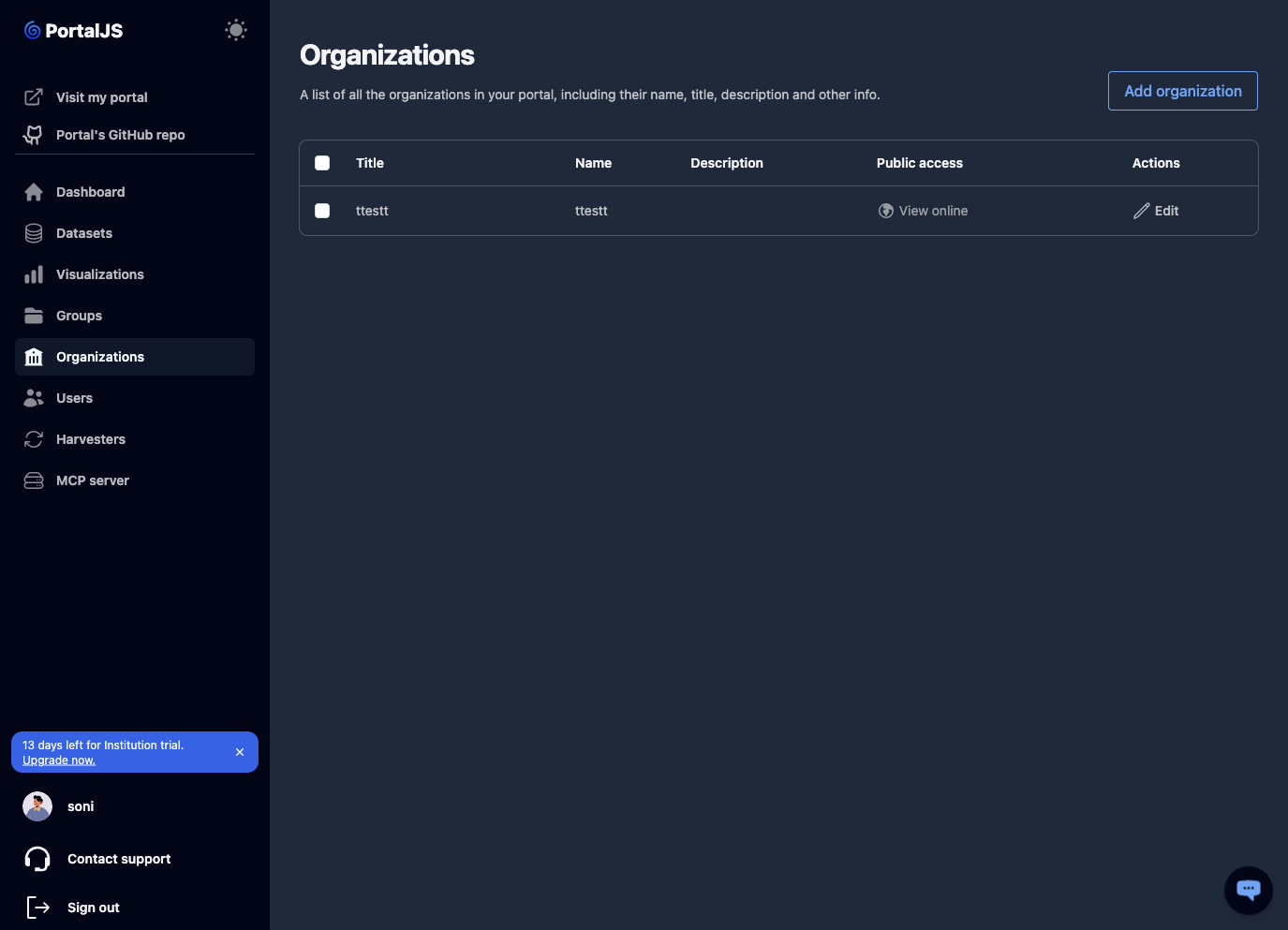
In the sidebar, click Organizations.
-
The table shows each organization's title, name, description, public link, and an Edit action (visible if you are an admin of that organization).
-
Click View online to open the organization's public page.
Create an organization
-
From the Organizations page, click Add organization. (Visible only to sysadmins.)
-
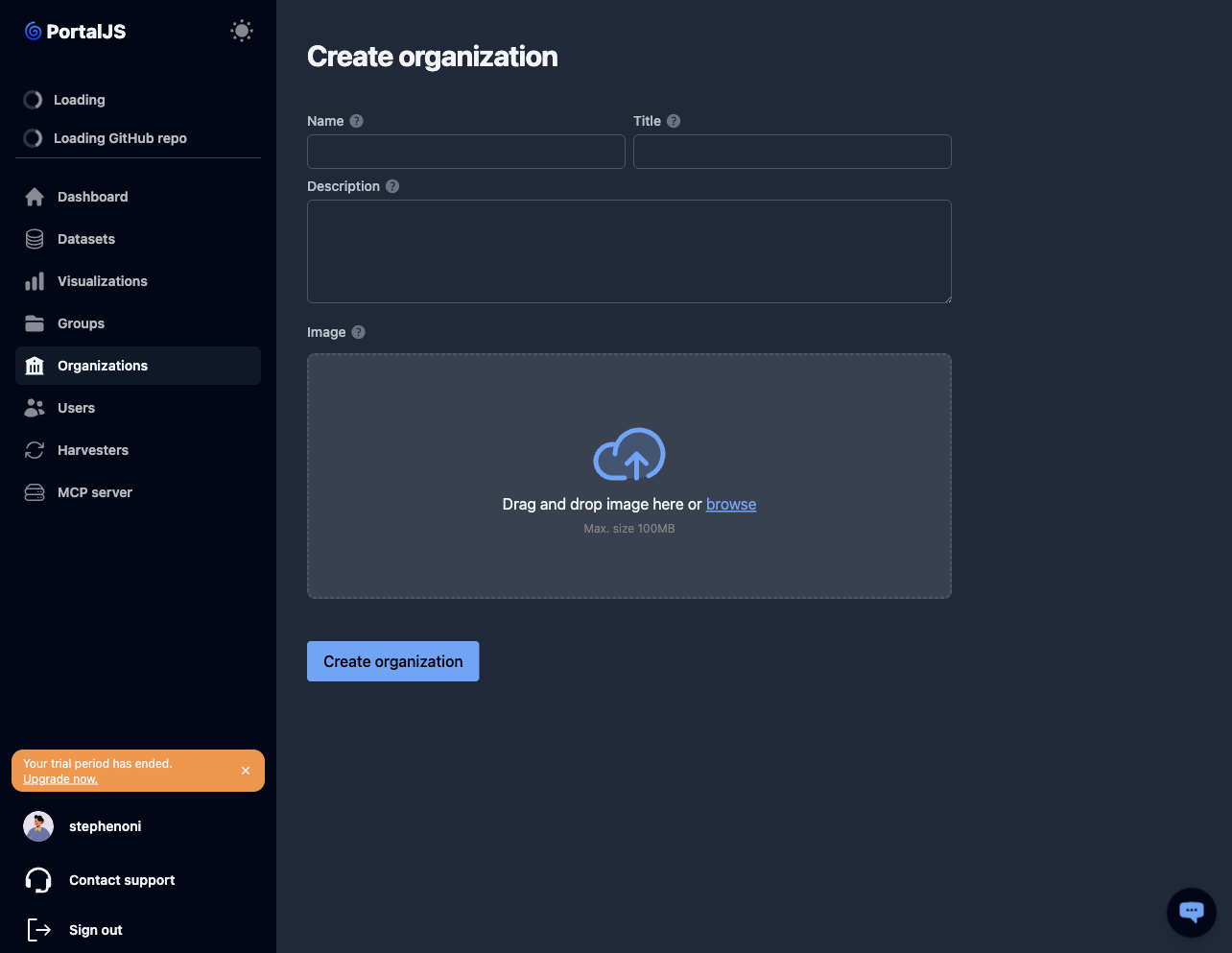
Fill in:
- Title and Name (slug).
- Description.
- Image (optional).
-
Click Save.
Edit an organization
-
From the Organizations list, click Edit.
-
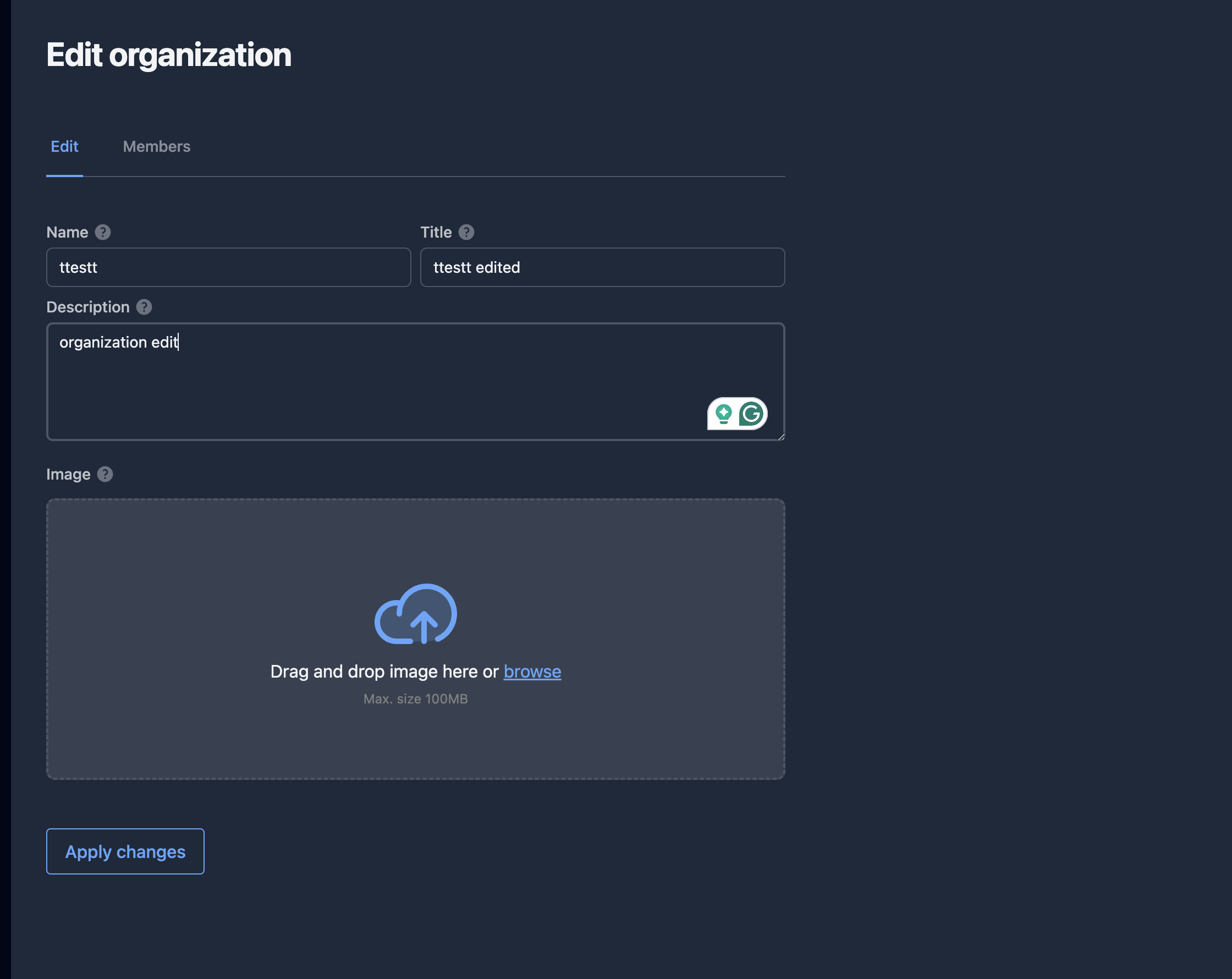
The edit page has two tabs:
- Edit — change the Name (slug), Title, Description, and Image.
- Members — manage who belongs to the organization.
-
Make changes and click Apply changes.
For the main organization, the Name field is disabled and cannot be changed.
Manage members
Members of an organization can create, edit, and (depending on role) delete datasets owned by that organization.
-
From the organization edit page, click the Members tab.
-
The table lists current members and their roles.
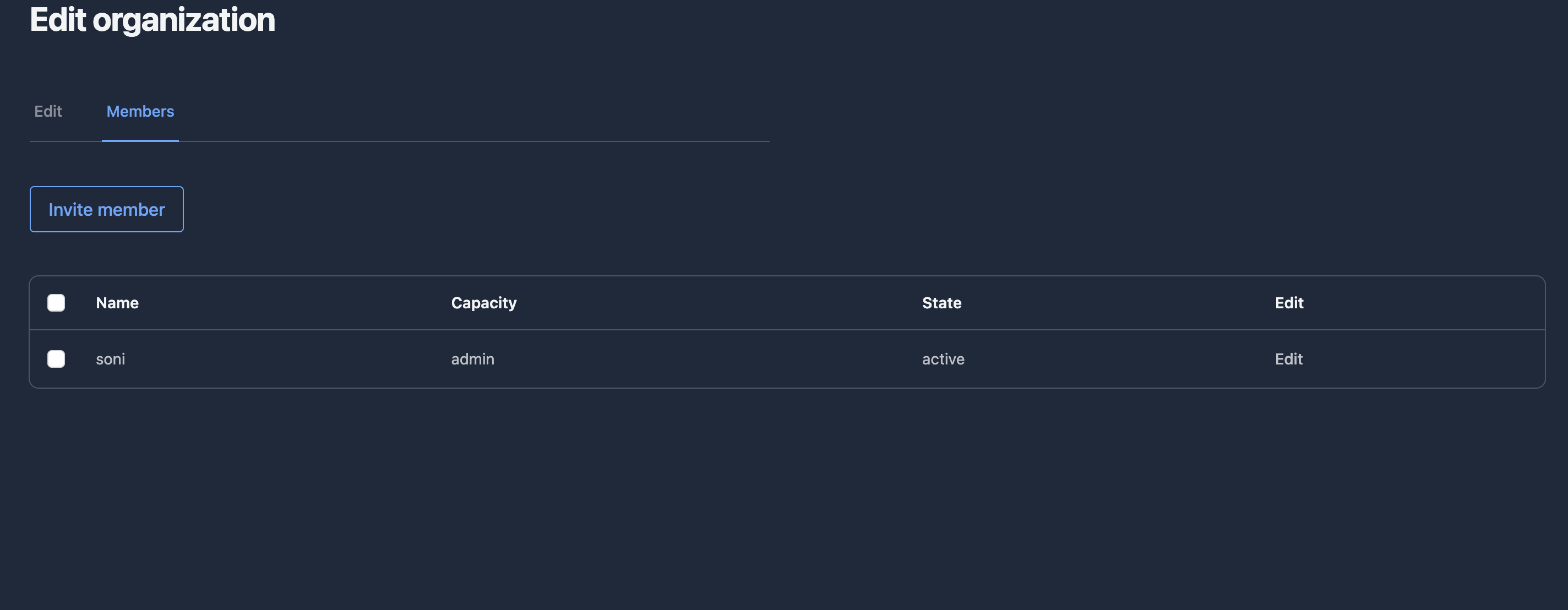
Roles
Each member holds one of three roles within the organization, following the standard CKAN role model. The role applies only to that organization; a user can hold different roles in different organizations.
| Role | View private datasets | Create / edit / delete datasets | Edit organization settings | Manage members |
|---|---|---|---|---|
| Member | Yes | — | — | — |
| Editor | Yes | Yes | — | — |
| Admin | Yes | Yes | Yes | Yes |
A sysadmin (admin of the portal's main organization) has full control over every organization regardless of explicit membership.
Invite a member
-
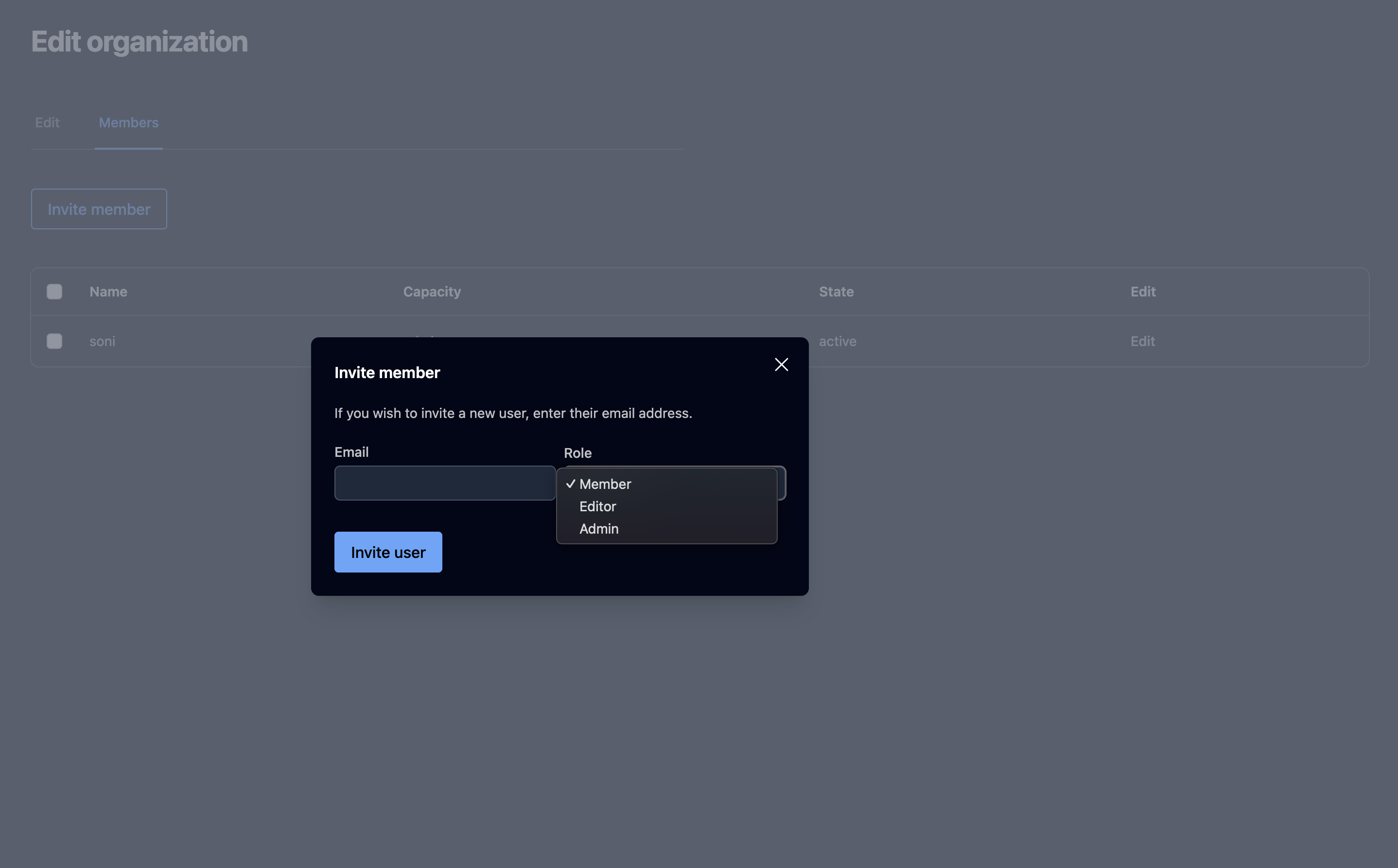
On the Members tab, click Invite member.
-
Enter the user's email address and select a role (member, editor, admin).
-
Click Invite user.
What happens next depends on whether the email already belongs to a portal user:
- Email not yet registered. A new account is created, added to the organization with the chosen role, and left in a pending state. The person receives an email with a link; once they click it and set a password, their account becomes active.
- Email belongs to an existing user. The user is added to the organization with the chosen role. No email is sent and no further action is required from them.
In both cases the user appears in the members list immediately — a pending user remains listed until they complete sign-up.
Remove or change a member's role
Use the actions on the member's row (edit role or remove). Removing a member revokes their ability to edit datasets owned by this organization.
Delete an organization
- From the Organizations list, select the organization's checkbox and click Delete all, or use a delete action on the row.
- Confirm.
Restrictions:
- An organization that still has datasets cannot be deleted. Reassign or delete its datasets first. You will see: "organization cannot be deleted because it contains datasets."
- The main organization cannot be deleted. You will see: "Main organization cannot be deleted."